Softphones: Zoiper, MicroSIP, Linphone
A softphone is a phone in the form of an app: on the cashier's computer, the manager's laptop or the owner's smartphone. To the PBX it is no different from a desk phone: you give the employee an extension in the admin panel and enter the same five values — SIP server, username, password, port 5060, transport UDP. Where to get them and what they mean is in the overview “SIP Phone Setup”.
In short, what to pick:
| Client | Platforms | Price for a business | When to choose it |
|---|---|---|---|
| MicroSIP | Windows | free (open source) | the computer at the till or front desk — lightweight, lives in the tray |
| Zoiper | Windows, macOS, Linux, Android, iOS | the free version is for non-commercial use only; a business needs Premium (one-time purchase) | one client for all of an employee's devices |
| Linphone | Windows, macOS, Linux, Android, iOS | free (open source) | when you need a free client on a smartphone or a Mac |
| Grandstream Wave Lite | Android, iOS | free | if the employee already uses it |
Once it is set up, dial *43 right away: the PBX plays your own voice back to you. It is the only check that audio gets through, not just the registration (details below).
When to use a softphone and when a desk phone#
A softphone is good where the person already sits at a computer or holds a phone: the manager, the owner, the delivery dispatcher, the accountant. It is free or nearly free, needs no socket or cable and shows contacts right away.
A desk phone or DECT is needed where a call must not be missed:
- Front desk, bar, reception. A computer goes to sleep, installs updates, someone closes the app — and calls silently stop arriving. A phone on the desk always rings.
- Waiters on the floor. A smartphone in a pocket receives calls in the background unreliably (see “Receiving calls in the background”), while a DECT handset is a phone that does nothing else.
- A noisy dining room and kitchen. Laptop speakers and a built-in microphone produce echo and noise; a desk phone has a proper handset.
One extension can be kept on several devices at once (up to 5): for example, a desk phone at the front desk and a softphone on the manager's smartphone. An incoming call rings on all of them; whoever picks up first answers.
Zoiper#
Platforms: Windows, macOS, Linux, Android, iOS. Download only from the official zoiper.com site or the app store.
Setting up on a computer (Zoiper 5)#
- Install and launch Zoiper. On the first “Username and password” screen enter:
- in the top field — the username from the window, an
@sign and the SIP server, e.g.sip-a1b2c3d4-101@sip.example.com(Zoiper itself hints “user@sip.example.com”); - in the Password field — the password from the window.
- in the top field — the username from the window, an
- Click Login. If Zoiper asks for the server address (Hostname), enter the SIP server from the window. Leave “Authentication” and “Outbound proxy” empty.
- Zoiper tests which connection methods work (SIP TLS, SIP TCP, SIP UDP, IAX UDP). SIP TLS and IAX will not be found on our PBX — that is normal. Choose SIP UDP (or SIP TCP if UDP does not pass on your network) and click Next.
- The wizard then offers to test the microphone and speaker — go through it with the headset you will actually use.
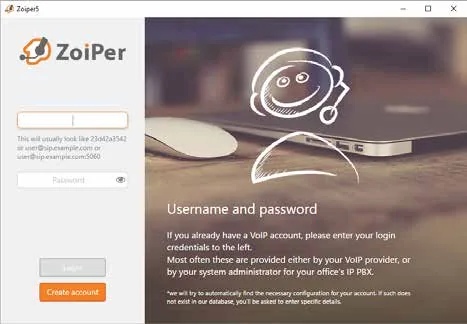 Screenshot: Zoiper 5 User Guide v.1.0.7, p. 10 (“Activation”), https://www.zoiper.com/pdf/User%20Guide%20Zoiper%205%20v.1.0.7.pdf.
Manual setup: which field goes where#
If the account already exists or the wizard failed, open Settings → Accounts → your account and check the fields:
| In the admin panel (“Extension credentials”) | In Zoiper 5 (Settings → Accounts → SIP Account) |
|---|---|
| SIP server | Domain (on a smartphone — Hostname) |
| Username | Username — in full, sip-…-<number> |
| Password | Password |
Port 5060 |
not entered — Zoiper uses 5060 by itself; another port is appended to the address: server:port |
Transport UDP |
Advanced → Network → Transport → UDP |
| Extension | no field; as the account label — Caller ID name (optional) |
Leave Use auth. username and Use outbound proxy unticked. Use STUN can be turned off: our PBX handles NAT itself and does not need STUN.
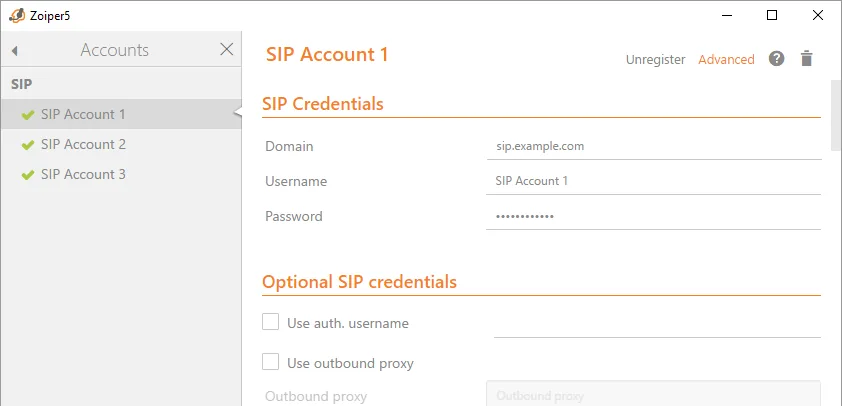 Screenshot: Zoiper 5 User Guide v.1.0.7, p. 30 (“Accounts / SIP Accounts”), https://www.zoiper.com/pdf/User%20Guide%20Zoiper%205%20v.1.0.7.pdf.
More: codecs, transport, keep-alive in Zoiper
- Codecs (Settings → Accounts → account → Advanced → Audio and Video codecs): keep G.711 a-law and G.711 µ-law in “Selected”; if your version has G.722, add it. Top to bottom = priority. Our PBX does not need G.729.
- Transport. Zoiper's documentation advises avoiding UDP because of NAT timeouts on the router. Our PBX also accepts TCP on the same port
5060— if incoming calls disappear after a few idle minutes on UDP, switch the account to TCP. TLS does not work on our shared PBX — do not choose it. - Keep alive time-out (same place, Network) — leave it on: it keeps the “hole” in the router open so that incoming calls get through.
- Registration expiry — the default is fine; our PBX accepts 60 to 3600 seconds.
Setting up on a smartphone (Zoiper for Android and iOS)#
The fields are the same: when creating the account, choose manual SIP account configuration and fill in Hostname (SIP server), Username (the full username) and Password. A green tick appears next to the account within about 30 seconds — registration succeeded. About the QR code — a separate section below.
MicroSIP#
Windows only, free and open source. It installs in a minute, lives in the tray and uses almost no memory — a good choice for the till computer. It does not read QR codes: it is set up with fields.
- Download it from the official
microsip.orgsite (regular or portable version). - MicroSIP main menu → Add Account.
- Fill in the fields as in the table and click Save. Check the registration in the admin panel: the operator gets a green dot.
| In the admin panel (“Extension credentials”) | In MicroSIP (Add Account) |
|---|---|
| SIP server | SIP Server and Domain — both the same |
| Username | Username — in full, sip-…-<number>; Login — may be left empty (Username is used then) or the same value |
| Password | Password |
Port 5060 |
not entered — 5060 by default; another port — after a colon in SIP Server |
Transport UDP |
Transport → UDP (“Auto (UDP & TCP)” also works) |
| Extension | Account Name / Display Name — as a label (optional) |
Leave SIP Proxy empty. Media Encryption — Disabled: our PBX does not provide audio encryption (SRTP), and with it the call will not connect. ICE — off.
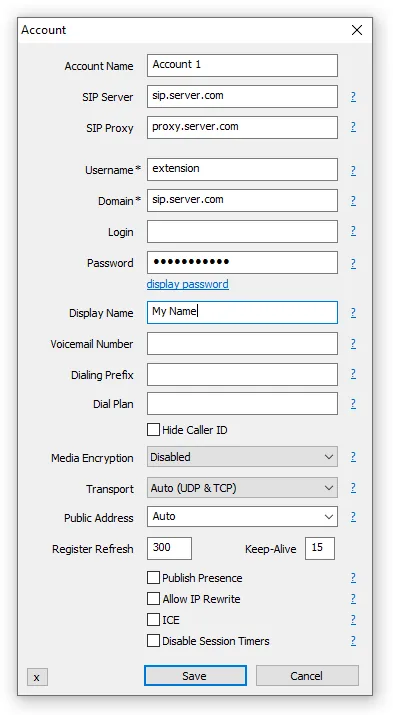 Screenshot: MicroSIP Help, Account section, https://www.microsip.org/help.
More: codecs and audio devices in MicroSIP
Main menu → Settings:
- Enabled Codecs — keep G.711 A-law and G.711 u-law, optionally add G.722 16 kHz from “Available Codecs” with the arrow. Nothing else is needed.
- Ring Device / Speaker / Microphone — choose the headset for talking, and the computer speakers for ringing (Ring Device), so the ring is heard even when the headset lies on the desk.
- DTMF Method — Auto or RFC2833.
- Keep-Alive in the account window (15 s by default) keeps NAT open — do not turn it off.
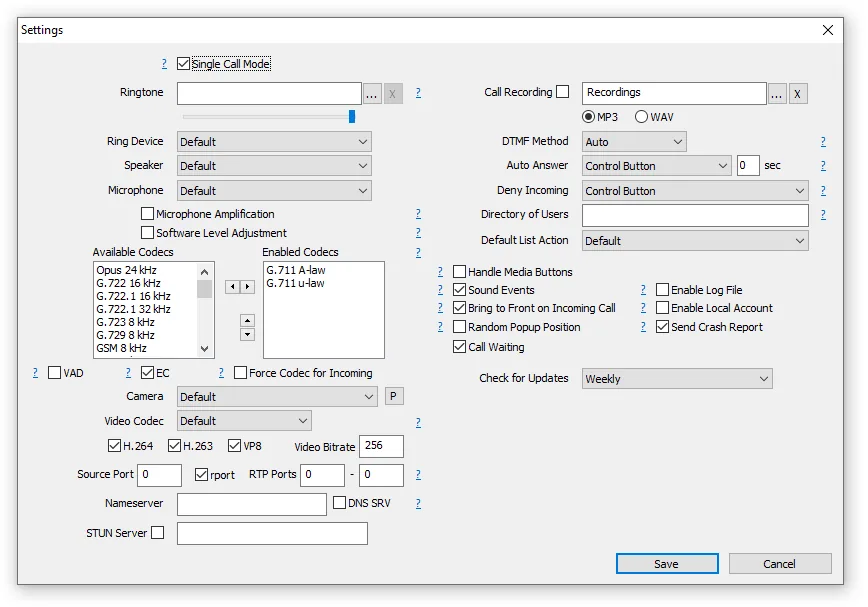 Screenshot: MicroSIP Help, Settings section, https://www.microsip.org/help.
Linphone#
A free open-source client by Belledonne Communications: Windows, macOS, Linux, Android, iOS. On first launch its wizard offers to create an account on their own service — you do not need it.
- On the start screen choose Third Party SIP Account (“Use a third party SIP account”). The app warns that some Linphone features (group chats, video conferences) are unavailable with a third-party account — tap I understand.
- Fill in the fields as in the table and tap Login.
| In the admin panel (“Extension credentials”) | In Linphone (Third party SIP account) |
|---|---|
| SIP server | Domain |
| Username | Username — in full, sip-…-<number> |
| Password | Password |
Port 5060 |
not entered — 5060 by default |
Transport UDP |
Transport → UDP. ⚠️ Linphone defaults to TLS — registration will fail with it, be sure to switch |
| Extension | Display name — as a label (optional) |
Leave Authentication ID (if different) and Outbound proxy empty.
Linphone push notifications go through Belledonne's intermediary server (Flexisip); a third-party account such as ours does not have it — so on a smartphone Linphone receives calls in the background worse than with the app open. See “Receiving calls in the background”.
Grandstream Wave Lite#
Grandstream's free SIP client for Android and iOS. Not to be confused with Wave (without Lite): that one is designed for Grandstream UCM systems and signs in by their invitation — it does not connect to our PBX. In Wave Lite add a SIP account manually with the same values: server — the SIP server from the window, username — in full (also in the authentication ID field if it is separate), password, transport UDP. Wave Lite does not read the admin panel QR code: Grandstream uses its own format.
The QR code from the admin panel#
The “Extension credentials” window has a “Show QR” button. The code contains a single line like
sip:<username>:<password>@<SIP server>:5060;transport=udp
that is, all credentials including the password. Therefore:
- show the QR only to the person you are giving the extension to; do not photograph or forward it — it is the same as forwarding the password;
- once the window is closed the QR cannot be restored (we do not store the password) — only “Reset password” and a new QR.
Who can read it. The built-in scanners of Zoiper and Linphone are designed primarily for a provisioning link, not for such a line: Zoiper describes its scanner for codes generated on its own service, and in current Linphone versions (6.x for Android and iOS) the scanner, according to its source code, accepts only a web link to a configuration file — it will reject our line with “Invalid QR code!”. You may try the QR in Zoiper; if no account is created, enter the fields — it takes two minutes. The most convenient way is to click “Copy all settings” and send the text to the employee in a private messenger: they open it on the same smartphone and copy the username and password into the app without typos.
Receiving calls in the background on a smartphone#
To be honest: nobody can guarantee that a smartphone with a softphone will ring when the app is minimised or the screen is off — neither we nor the softphone vendors. The reason is the operating systems themselves:
- Android puts background apps to sleep (Doze mode and “battery optimisation”), and when switching from Wi-Fi to mobile data it breaks their connections. The registration is lost silently — the dot in the admin panel stays green for a while, but the call no longer reaches the phone. Some skins (Xiaomi MIUI/HyperOS, Huawei EMUI) kill apps even more aggressively.
- iOS does not let an ordinary app keep a connection in the background at all: an incoming call wakes the app only through a push notification (Apple's service), and for that the softphone needs its own intermediary push server.
What reduces the risk:
- Android: Settings → Apps → your softphone → Battery → “Unrestricted” (or remove “battery optimisation”); allow background activity, display over other apps and notifications. On Xiaomi also “Autostart”.
- Zoiper offers its own Push Proxy service (Firebase on Android, APNs on iOS) — according to Zoiper's documentation this is the only reliable way to receive calls in the background. It is enabled in the app; terms and price are Zoiper's. The service requires the PBX to allow re-registration for at least 1 hour: our PBX accepts up to 3600 seconds, exactly that minimum.
- Linphone with a third-party account gets no push (their Flexisip server is required) — keep the app open.
- Keep the app open on screen while waiting for calls (e.g. a smartphone on a stand at the till).
Most importantly: where a call must not be lost, install a desk phone or DECT, and let the smartphone be a second device on the same extension.
Headset and audio#
- A headset is a must for working at a computer. A laptop's built-in speakers and microphone on speakerphone produce echo for the other party: your speaker leaks into your own microphone. Zoiper's documentation states plainly that echo coming from the other side cannot be removed on your end — it is fixed by whoever creates it.
- A USB headset is more reliable than Bluetooth: it has no lag or dropouts on a weak signal, a smartphone does not “grab” it, and it does not switch by itself to “headphones without microphone” mode. A Bluetooth headset works, but in call mode the audio is noticeably worse than when listening to music.
- Choose the device explicitly in the softphone settings: Zoiper — Settings → Audio (microphone, speaker, a separate Ringing device), MicroSIP — Settings → Ring Device / Speaker / Microphone. It is handy to send the ring to the computer speakers and the conversation to the headset. Zoiper has a “Ring also through PC speakerphone” tick — the ring is heard even when the headset is not worn.
- Echo cancellation (EC) — do not turn it off, as Zoiper advises; in MicroSIP it is the EC tick in Settings.
- Headset answer buttons: MicroSIP — the Handle Media Buttons tick in Settings (headset and multimedia keyboard buttons), Zoiper — Settings → Audio → Use generic HID (plus separate modes for Jabra and Plantronics).
Audio check *43#
The green dot next to the operator in the admin panel only tells you about registration (port 5060). Voice travels as a separate stream and breaks separately. So right after setup, dial *43 in the softphone and press the call button:
- The PBX answers and plays a short beep;
- then speak for about ten seconds — you will hear your own voice.
| What you hear | What it means |
|---|---|
| A beep, then your own voice | audio passes both ways — all is well |
| A beep, but you cannot hear yourself | audio does not get from the softphone to the PBX: wrong microphone (check the device in settings), the app has no microphone permission, SIP ALG on the router |
| Not even a beep | audio does not get from the PBX to you: wrong speaker selected, or the network blocks UDP — see “Network, router and internet” |
| Choppy or delayed | a poor connection: Wi-Fi instead of a cable, an overloaded internet link |
The check is free and calls nobody. The numbers (loss, jitter, delay) go into the call log — details in the overview: “Checking call quality”. Audio problems explained — “No audio, one-way audio, echo”.
If the softphone does not register#
First, the common causes from most to least frequent (the same for any device):
- The username is not complete. You need
sip-…-<number>, not “101”. - The password is outdated. Someone clicked “Reset password” — the old one no longer works. Issue a new one.
- Wrong server address. A venue with a dedicated machine has its own address — copy it from the window.
- Linphone on TLS. Switch Transport to UDP.
- The network blocks UDP 5060 (guest Wi-Fi, some mobile networks, a corporate VPN): try TCP or another network — the same account from home or over mobile data.
What Zoiper messages mean (per its documentation):
| Zoiper message | What it means with us |
|---|---|
| SIP 401 / the account does not register, asks for a password | wrong username or password: the username is not complete, the password was reset. The “auth. username” field does not need filling — the full Username is enough |
| SIP 403 Forbidden | the PBX refused: the same wrong password, or the extension was deleted/disabled in the admin panel |
| SIP 408 Request timed out | the request did not reach the PBX or the reply did not reach you: a router or firewall is blocking, wrong transport. Switch UDP ↔ TCP, turn off STUN |
| SIP 503 Transport Failure | Zoiper could not send the request: a typo in the server address or no network |
| SIP 923 No DNS results | the server address was not found via DNS: a typo in the SIP server, an unnecessary Outbound proxy, wrong transport, or a VPN on the computer interfering with DNS |
The full list of codes and messages of various devices — “Not registering: on-screen messages and error codes”, all symptoms — “Troubleshooting by symptom”.
FAQ#
Can one extension be on both a desk phone and a softphone?#
Yes. One account registers on several devices at once (up to five); an incoming call rings on all of them and whoever picks up first answers. A handy pair: a desk phone at the front desk + a softphone on the manager's smartphone.
Is the free Zoiper enough?#
Technically, for calls — yes, but under its licence the free Zoiper is for non-commercial use only. A business needs Premium (a one-time purchase per device) — or use the free MicroSIP (Windows) and Linphone.
Why did the QR code from the admin panel not work?#
The QR contains the line sip:username:password@server:port. The Zoiper and Linphone scanners primarily expect a provisioning link of their own service, and Linphone 6.x accepts only such a link. Enter the fields manually or send the employee the text with the “Copy all settings” button.
The softphone on a smartphone does not ring when the screen is off#
This is how Android and iOS behave, not a PBX fault: the system puts the app to sleep and the registration is lost. Remove battery optimisation and allow background activity; in Zoiper, enable Push Proxy. If calls are still lost, you need a desk phone or DECT.
The other party hears an echo when I talk from a laptop#
Your speaker is leaking into your microphone. Put on a headset and check that echo cancellation is enabled in the softphone settings. If you hear the echo, it is created on the other party's side and cannot be fixed on yours.
Can calls in a softphone be encrypted (TLS, SRTP, ZRTP)?#
Not at the moment: the PBX accepts UDP and TCP on port 5060 and unencrypted audio. TLS or audio encryption enabled in the softphone will make the account fail to register or the call fail to connect.
Related sections#
- Overview: connecting a phone to the PBX — credentials, the
*43echo test, factory reset - Network, router and internet for telephony — SIP ALG, NAT, how much bandwidth you need
- Troubleshooting by symptom
- Not registering: on-screen messages and error codes
- No audio, one-way audio, echo
- Calls drop
Sources#
- Zoiper 5 User Guide v.1.0.7 (the “Username and password” wizard and the SIP TLS/TCP/UDP choice — pp. 9–10; Accounts → SIP Accounts: Domain, Username, Password, Use auth. username, Outbound proxy — p. 30; Transport, Keep alive, rport, STUN — pp. 34–35; audio, Echo cancellation, Ringing device, HID headsets — pp. 41–42) — https://www.zoiper.com/pdf/User%20Guide%20Zoiper%205%20v.1.0.7.pdf
- Zoiper: Informational and error messages (SIP 401, 403, 408, 503 Transport Failure, 923 No DNS results) — https://www.zoiper.com/en/support/answer/for/android/80/Informational_and_error_messages ; Error SIP 923 — https://www.zoiper.com/en/support/home/article/20/Error%20SIP%20923
- Zoiper Push Proxy FAQ (background incoming calls on iOS/Android only via push, re-registration of at least 1 hour) — https://www.zoiper.com/en/support/home/article/205/Zoiper_Push_Proxy
- Zoiper: How to generate QR codes on Zoiper OEM (QR codes are created on the Zoiper service, valid 48 hours, scanned once) — https://www.zoiper.com/en/support/home/article/218/How%20to%20generate%20QR%20codes%20on%20Zoiper%20OEM
- Zoiper 5 download (platforms; the free version is “non-commercial use only”) — https://www.zoiper.com/en/voip-softphone/download/current
- MicroSIP Help (Account window fields; Settings: audio devices, codecs, Handle Media Buttons) — https://www.microsip.org/help
- Linphone: Log in with Third-Party SIP Account — https://www.linphone.org/en/docs/login-sip-account/ ; QR Code / Provisioning Link Login — https://www.linphone.org/en/docs/login-with-qrcode/
- linphone-android source code:
QrCodeViewModel.kt(QR accepted only as a provisioning link),ThirdPartySipAccountLoginViewModel.ktandCorePreferences.kt(default transport — TLS),strings.xml(field names) — https://github.com/BelledonneCommunications/linphone-android - Grandstream: Wave Application FAQ (Wave is for UCM; the plain SIP client is Wave Lite) — https://documentation.grandstream.com/knowledge-base/wave-application-faq/
- Android Developers: Optimize for Doze and App Standby — https://developer.android.com/training/monitoring-device-state/doze-standby
- PBX code: QR format and the “Copy all settings” text —
admin/lib/sip-provisioning.ts; the “Extension credentials” window —admin/components/integrations/SipOperatorRevealModal.tsx; registration expiry 60–3600 s, codecs, NAT —shared/sip/advanced-options.json