Cenaly Phone: dialing, calls and call log
How to make calls from Cenaly Phone, what's on the call screen and how to use the call log. First the iPhone must be connected to your work number — see Getting started.
Dial a number#
The Keypad tab: the number field, the “Digits / By name” switch, the keypad and the green “Call” button.
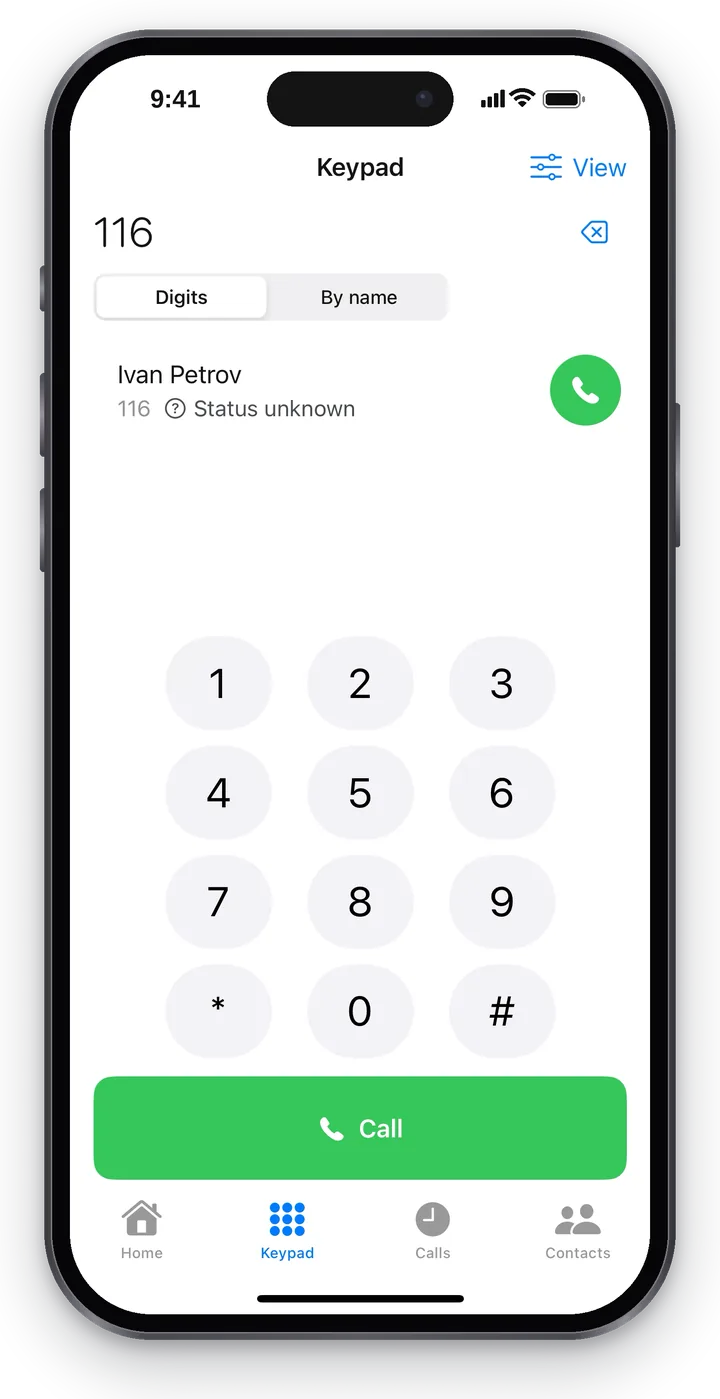 Screenshot: Cenaly Phone for iPhone, dialing with digits.
- Dial the number. The button to the right of the field deletes a digit; a long press on 0 puts a “+” at the start of the number.
- Tap “Call”.
| What you dial | Where the call goes |
|---|---|
A colleague's extension (for example, 116) |
To a colleague at the same workplace, inside the phone system |
| An external number | To a customer — through the business's lines, from the business's number (if your manager allows outgoing calls) |
A service number with * or # |
Service functions of the phone system |
Paste a number. While the field is empty, the system “Paste” button is to the right of it. The app pastes a copied number (or a tel: link) into the field; copied text without digits switches dialing to “By name”. If the pasted number looks different from what will actually be dialed (spaces, brackets, dashes), a “Will dial: …” line appears under the field — so you see the exact number before the call.
You don't have to use the keypad: you can also call with the handset button in Contacts, the “Call back” button in the log, and from the iPhone's Recents.
Dialing by name and suggestions#
Choose “By name” and start typing a name — suggestions appear under the field (up to six):
- colleagues — with their status (“Available”, “On a call”…);
- your contacts — marked “My contact”;
- iPhone contacts — marked “From the phone” (only if you allowed access on the Contacts tab).
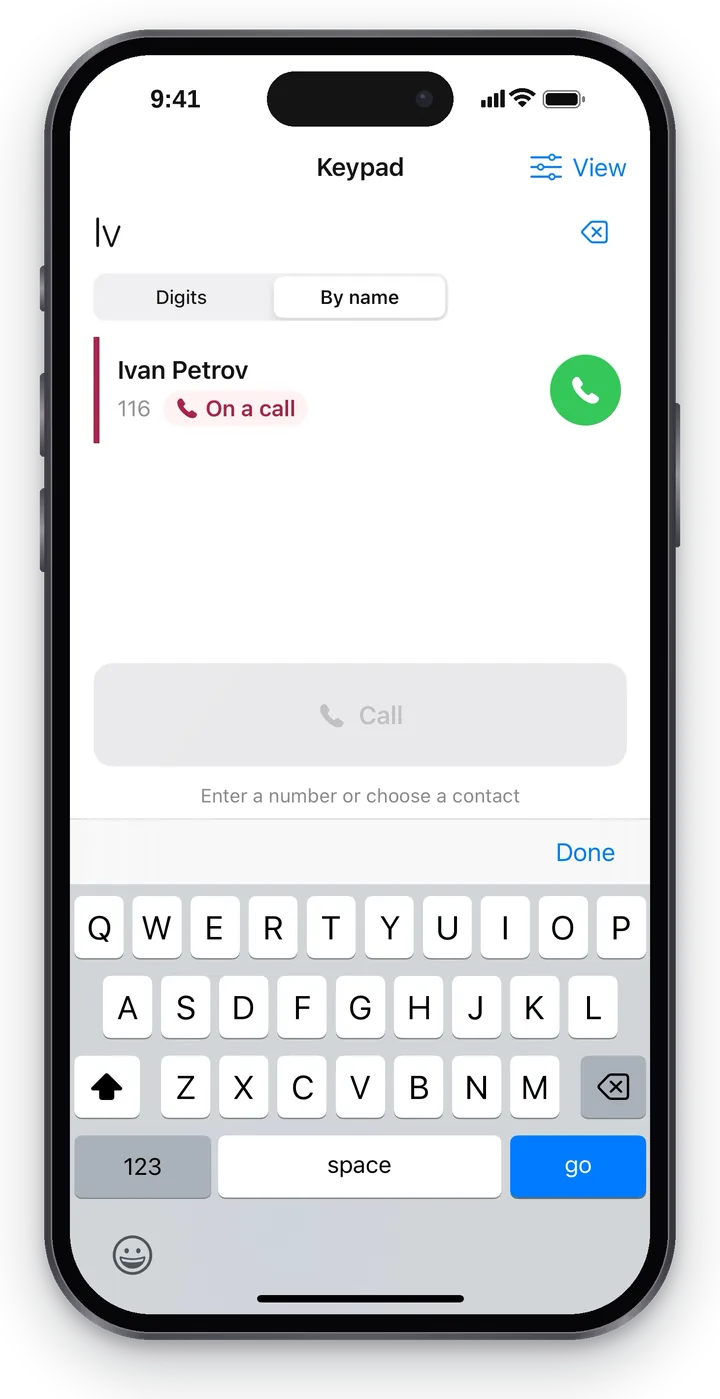 Screenshot: Cenaly Phone for iPhone, dialing by name.
Tapping a suggestion puts its number in the field; the green handset next to it calls right away. If nothing matches, you'll see “Nothing found”.
A call from another app#
Cenaly Phone accepts calls from other Cenaly apps and from links. Such a call never starts silently: the app asks “Call via Cenaly Phone?” and shows the name, the number and a “Requested by: …” line — which app asked to make the call.
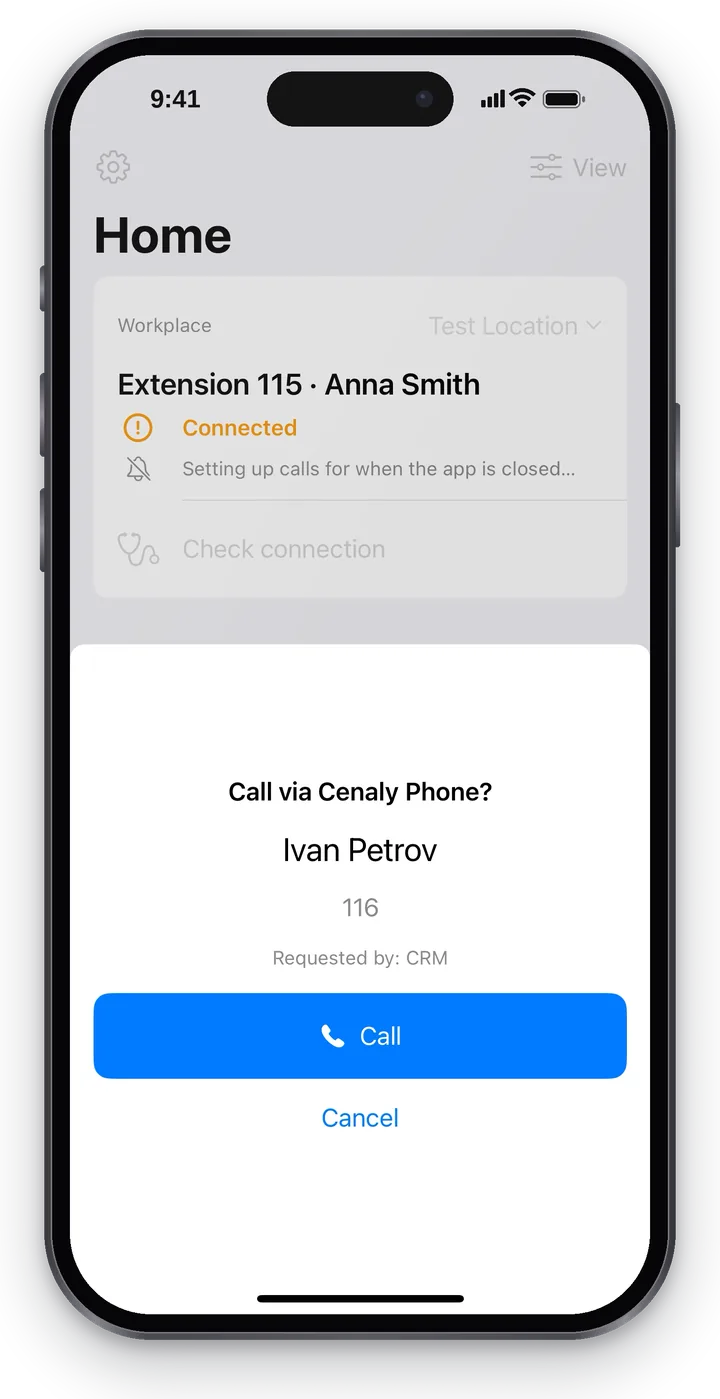 Screenshot: Cenaly Phone for iPhone, confirming a call from another app.
Tap “Call” or “Cancel”. This way no app can call on your behalf without you knowing. Calls from the iPhone's Recents, the iPhone's Contacts and Siri start right away, without this question.
Without internet#
- Without internet, the app offers to dial an external number with the regular phone: “No internet. The call will go from your SIM card, not your work number” and the “Open the regular phone app” button. The customer will see your personal number — it's your call.
- Extensions and service numbers are never dialed through the SIM card: “No internet. Internal numbers work only through Cenaly Phone”.
Emergency numbers#
The app does not dial emergency numbers through the business's phone system (112, 911 and local emergency numbers) — it hands them straight to the iPhone's regular Phone app, and the call goes over the cellular network. This way an emergency call goes through even without internet.
Incoming calls#
An incoming call arrives like a normal iPhone call — on the lock screen or as a banner; you answer with a swipe or the “Accept” button. After you answer, the Cenaly Phone call screen opens. Calls also appear in the iPhone's Recents.
Whether calls arrive while the app is closed depends on your workplace's phone system — see Calls when the app is closed.
The call screen#
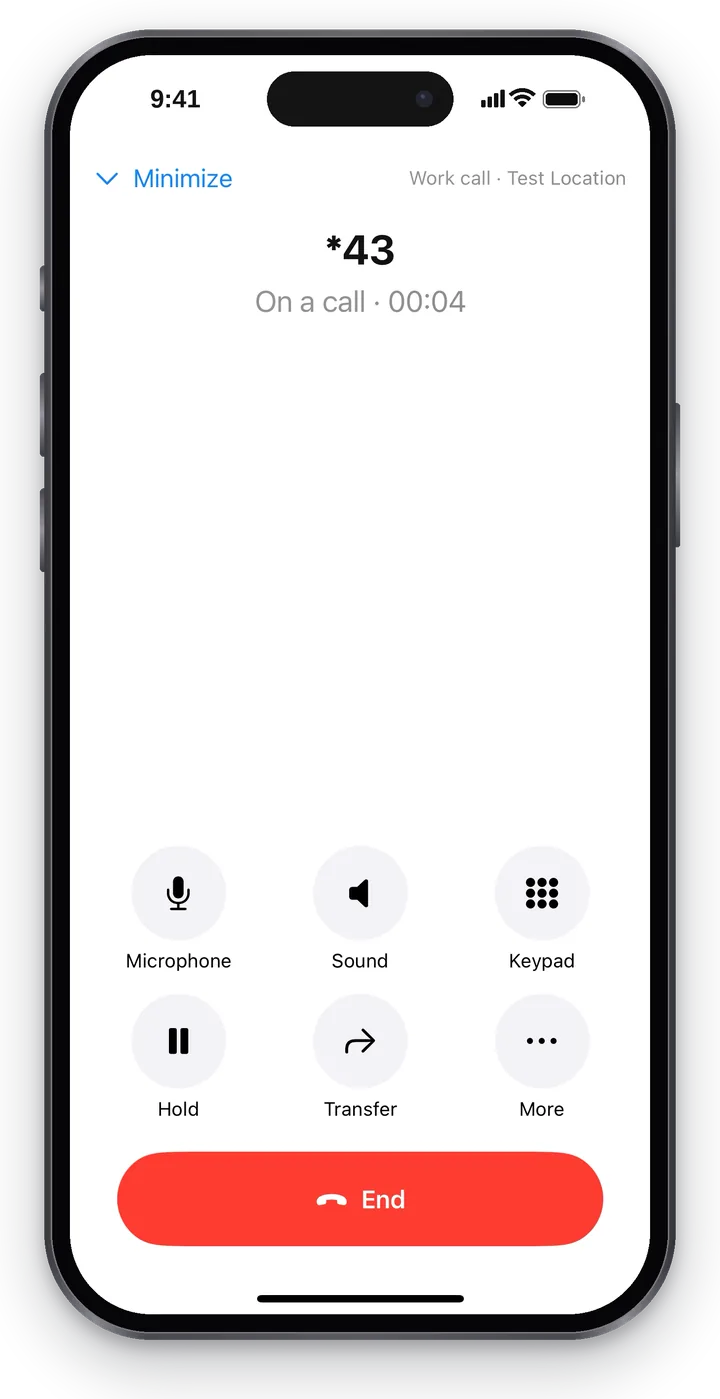 Screenshot: Cenaly Phone for iPhone, the call screen.
Under the name is the state: “Calling …”, “Connecting…”, “On a call · 02:14”, “Call ended”. The six buttons are labelled:
| Button | What it does |
|---|---|
| Microphone | Turns off your microphone: the other person can't hear you. “Microphone off” appears on the screen |
| Sound | Speakerphone. If a headset is connected, you choose: “Phone”, “Speaker” or the headset |
| Keypad | Tone dialing for voice menus (“press 1”, a PIN). To close it — “Close keypad” |
| Hold | Puts the other person on hold; the button changes to “Resume” |
| Transfer | Hand the call to a colleague — see Transferring a call |
| More | “Caller card”, “Tips”, “Take on” (if available) and “Minimize” |
Important states are shown large, in a frame:
| Label | What it means |
|---|---|
| “The other person is waiting” | You put the other person on hold |
| “The other person put you on hold” | The other person turned hold on — wait |
| “Microphone off” | The other person can't hear you |
| “Restoring the connection…” | The network changed or dropped — the app is reconnecting, the call is not cut off |
| “The connection is unstable” | The connection quality is low (in the “Everything” view you see a rating: “Connection quality: 4 of 5”) |
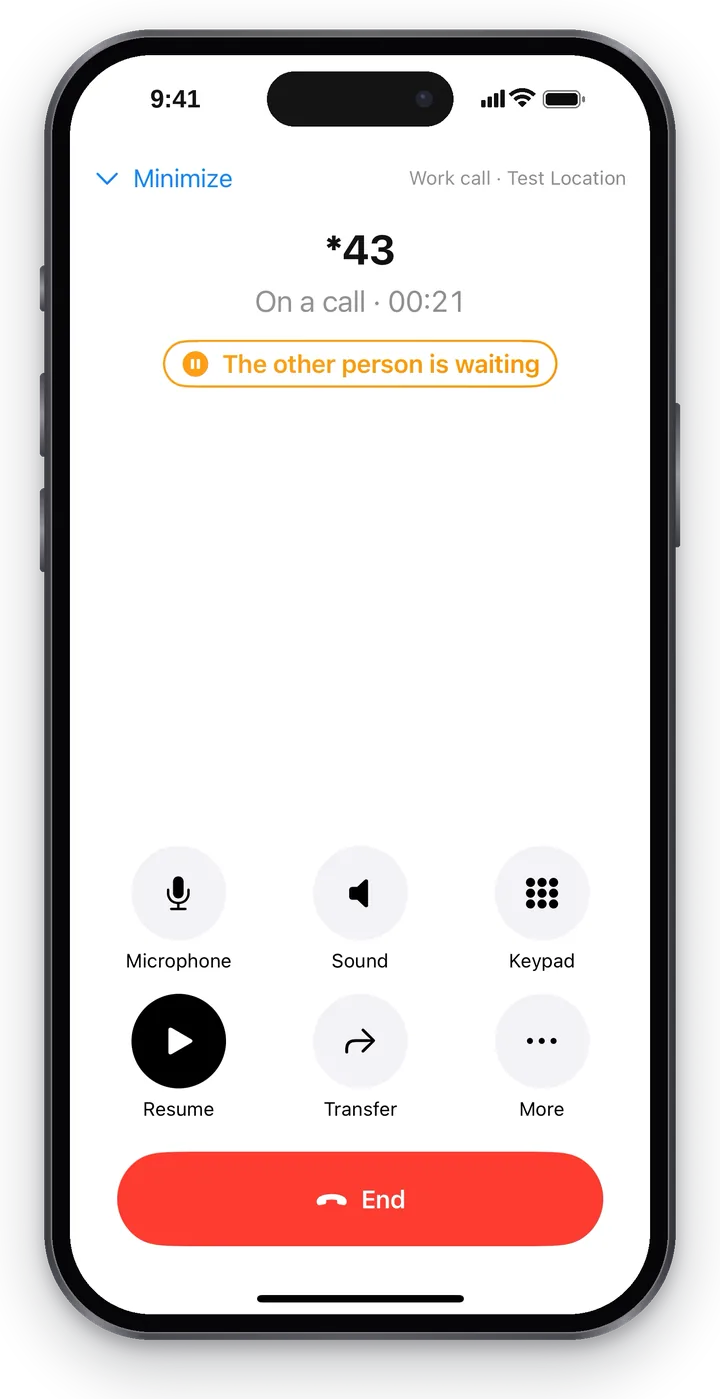 Screenshot: Cenaly Phone for iPhone, the other person on hold.
If a known customer is calling, the call screen may show the caller card (name, how many times they have called, bookings and orders), and if the prompter is on — tips with “Helpful” / “Not helpful” buttons. What to show is set in “View” → “During a call” (see View and settings).
The “Back to call” bar#
The “Minimize” button at the top of the call screen takes you back to the app while the call continues. A green bar stays at the top of every screen: the name, the call time and “Back to call” — tap it to return to the call screen.
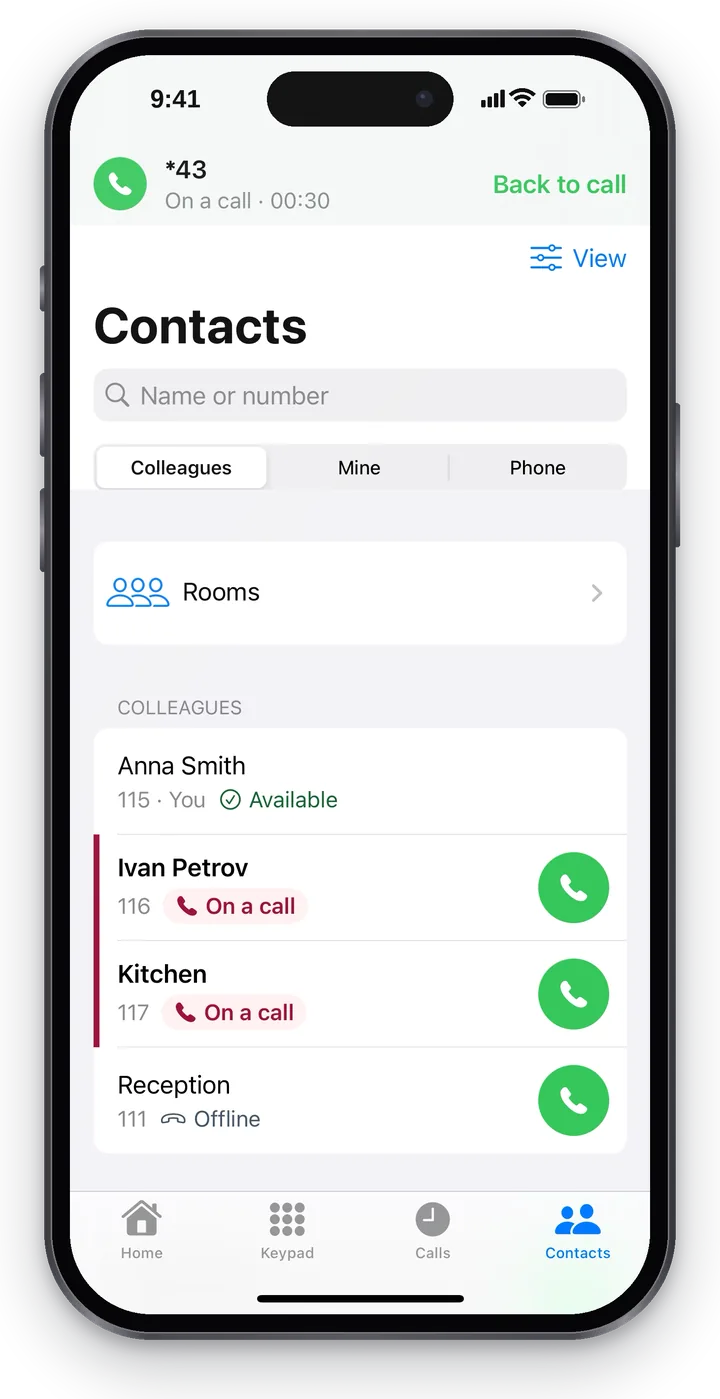 Screenshot: Cenaly Phone for iPhone, a minimized call and the “Back to call” bar.
Call log#
The Calls tab is the log of your calls from the business's phone system, not from the iPhone: it also includes calls that came to your work number while the iPhone was off or on another device.
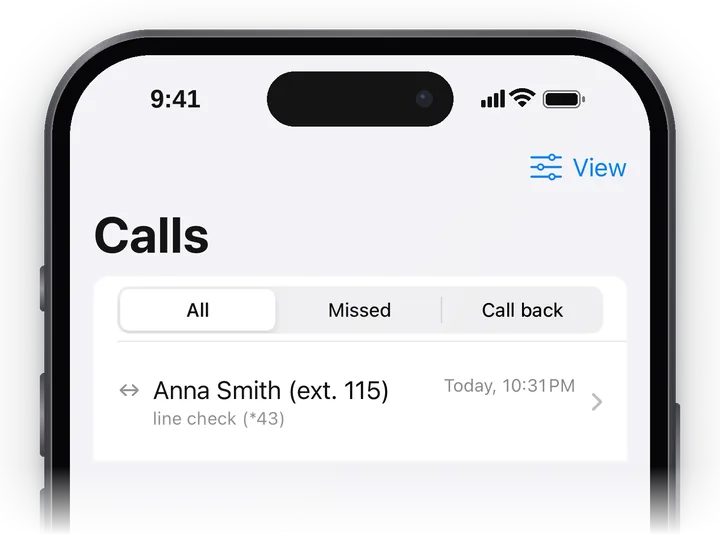 Screenshot: Cenaly Phone for iPhone, the call log.
- Filter: “All”, “Missed”, “Call back”. If your manager has given you access to the log of the whole workplace, there is also a “Mine / Whole workplace” switch.
- A call row: the direction arrow, the other party, the outcome (“answered”, “missed”, “busy”, “gave up waiting”, “line check (*43)” and so on), the date and time. Missed calls are red. In the “Standard” and “Everything” views you also see the duration and a recording icon.
- The green handset on the right — “Call back”.
- Pull down to refresh; older calls load as you scroll. The phone system keeps the last 400 calls or 90 days.
- Without internet a saved copy is shown: “No connection — showing the copy from …”.
Call-backs#
If a call is waiting for a call-back, its row shows “To call back · attempts: N”, and below it the “Reached” and “Couldn't reach” buttons. After you tap one, a “Marked: …” banner with an “Undo” button is shown for 5 seconds — in case you tapped the wrong one. Without internet the mark waits for a connection and is sent automatically (“Waiting for connection: 1 change(s) will be sent automatically”).
Call details#
Tap a row — the “Call” screen opens.
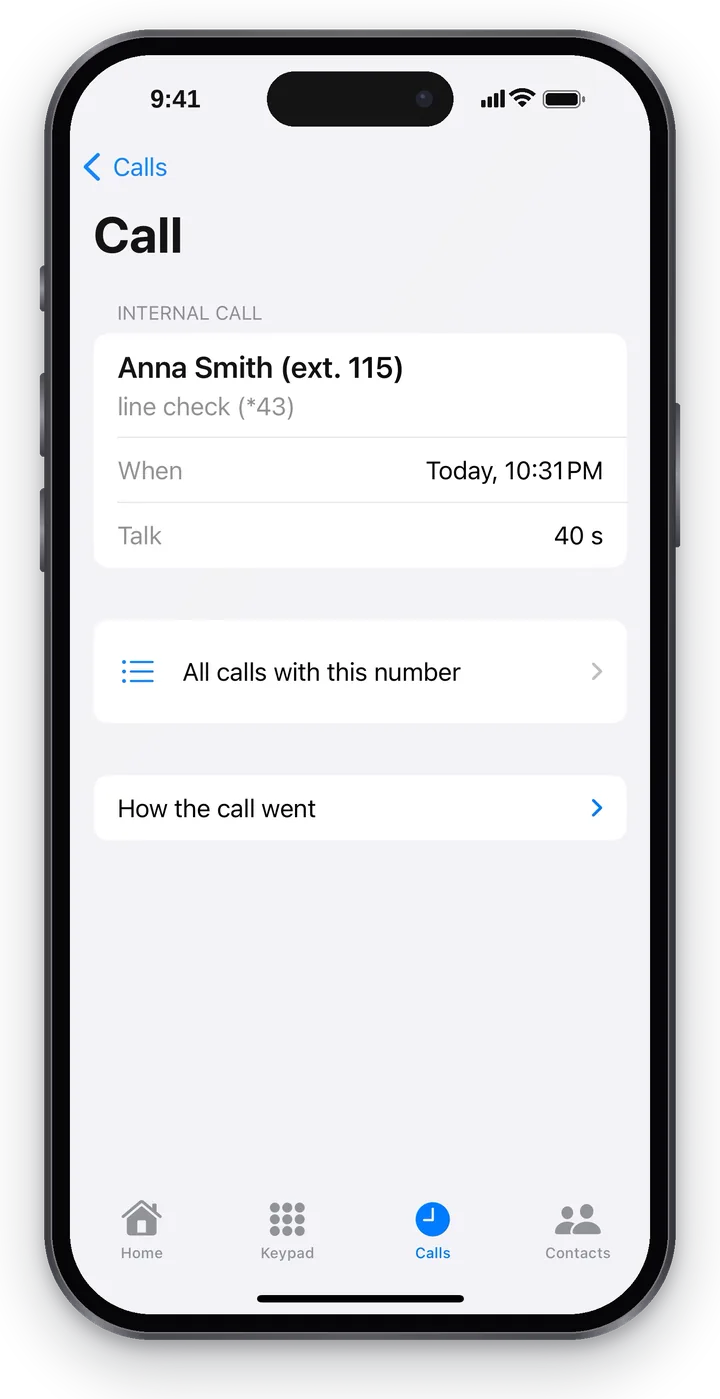 Screenshot: Cenaly Phone for iPhone, call details.
| Block | What it shows |
|---|---|
| Header | “Incoming call”, “Outgoing call”, “Transferred call” or “Internal call”, the other party, the outcome and the “Call back” button; “Answered by”, “When”, “Talk” |
| “All calls with this number” | All calls with this person from the log |
| “Recording” | Playback with seeking — if the call was recorded and you are allowed to listen to recordings |
| “Caller card”, “Call summary”, “Transcript” | Who called (with an “Open in the web account” link), a short summary and the text of the conversation split by “Caller / Employee” — if available |
| “How the call went” | The call's path through the phone system in plain words: from whom, where to, which rule applied, who was rung, transfers, who hung up. It shows why a call didn't reach you |
Limitations#
- The log shows the last 400 calls or 90 days.
- “All calls with this number” searches among the calls already loaded in the log.
- A “recording in progress” mark is not shown on the call screen yet.
Troubleshooting#
| Symptom | What to do |
|---|---|
| “You can't call right now. …” above the call button | The reason is in that line; tap “Check connection” under it |
| The “Call” button is greyed out | The field is empty: “Enter a number or choose a contact” |
| An external number won't dial | Your manager restricts outgoing calls (destinations, limits) — ask them; see Telephony: your own PBX |
| The other person can't hear you | Check the “Microphone” button and microphone access in the iPhone settings |
| A voice menu doesn't react to digits | Dial the digits with the “Keypad” button on the call screen |
| “The call dropped before it connected.” | The incoming call was cut off before it connected — call back from the log |
FAQ#
What number do people see when I call?#
The business's number, not your personal one. The exception is a call made with “Open the regular phone app” without internet: it goes from your SIM card.
Why does the log show calls that never rang on my iPhone?#
The log is kept by the phone system, not by the iPhone: it has all calls to your work number, including those that came to your other devices.