Cenaly Phone for iPhone: getting started
Cenaly Phone is a staff work phone on your iPhone. Everyone who takes calls has their own work number — a short extension such as 115. The app connects your iPhone to that number: calls to your work number ring on the iPhone, and from the iPhone you can call colleagues by their extensions and call customers — from the business's number, not from your personal SIM card.
What Cenaly Phone is#
| What | How it works |
|---|---|
| Whose phone | Yours: you sign in with your own account and see your own work number |
| How it connects | With one button, “Connect this phone”. There is no server address or password to type — the app gets them itself and keeps them in the iPhone's secure storage |
| Other phones | Stay connected. A call to your work number rings on all your devices at once, and whoever picks up first takes it |
| What a call looks like | An incoming call arrives like a normal iPhone call — on the lock screen, with headsets and Bluetooth. The conversation happens on the app's call screen |
| Language | The interface uses the iPhone's language |
What you need#
| What | Why |
|---|---|
| An iPhone with an up-to-date iOS | The app is made for iPhone; it is not designed for iPad |
| An account — email and password (as in the web account) or a sign-in code from your manager | So the app knows who you are and where you work |
| Your own work number | Your manager assigns it: Telephony → the Staff & groups tab (see Telephony: your own PBX). Without a number there is nothing to connect to |
| Permission to connect phones yourself | Your manager turns on “Staff connect their own phones” and sets there how many phones one person may connect |
| Internet | Wi-Fi or mobile data. Calls go over the internet, not through your mobile carrier |
How to install the app#
Cenaly Phone for iPhone is currently in testing. To find out how to get the app for your team, contact support — see How to get help.
Step 1. Sign in#
The app opens with a sign-in screen that has two options at the top: “Email and password” and “Code or QR”.
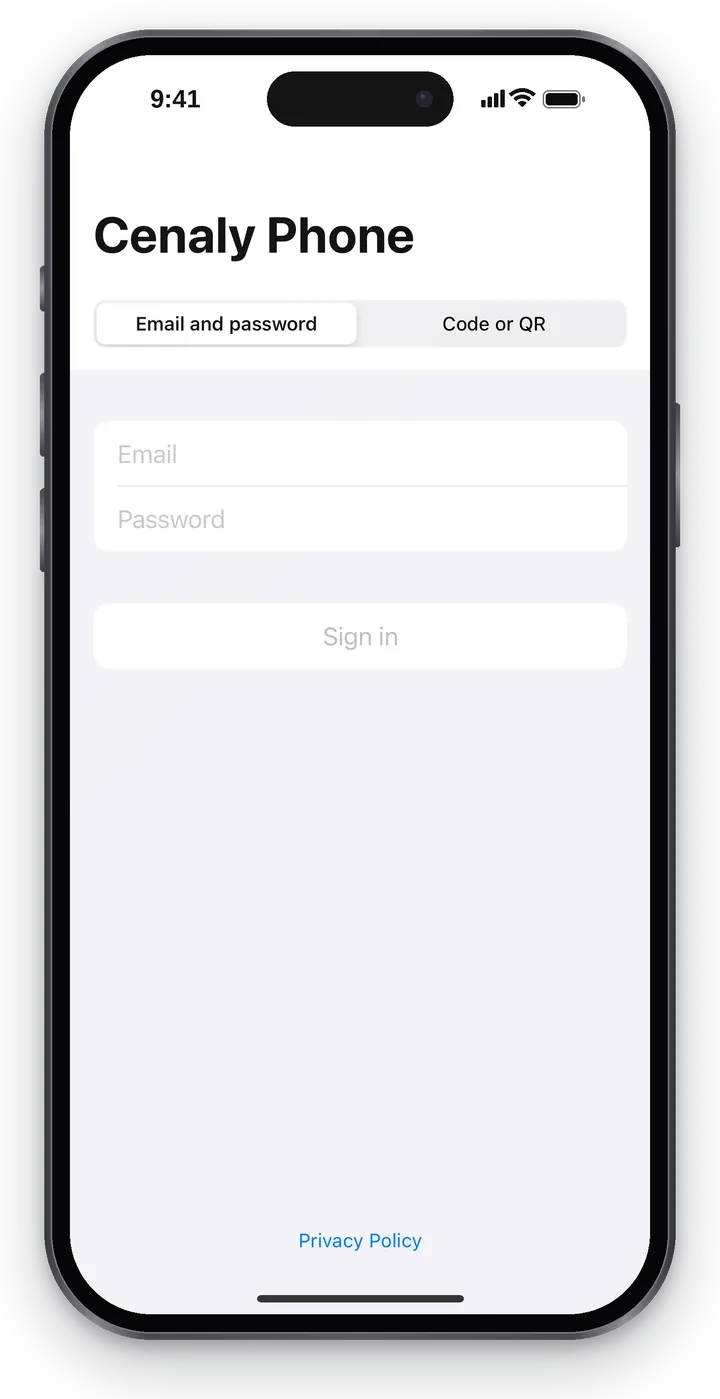 Screenshot: Cenaly Phone for iPhone, the sign-in screen.
Email and password — if you have your own account (a manager, or an employee with their own login).
- Enter your email and password — the same ones as in the web account.
- Tap “Sign in”.
- If two-step protection is on, the app asks for a “6-digit code” — from your authenticator app, an SMS or an email. Enter it and tap “Confirm”.
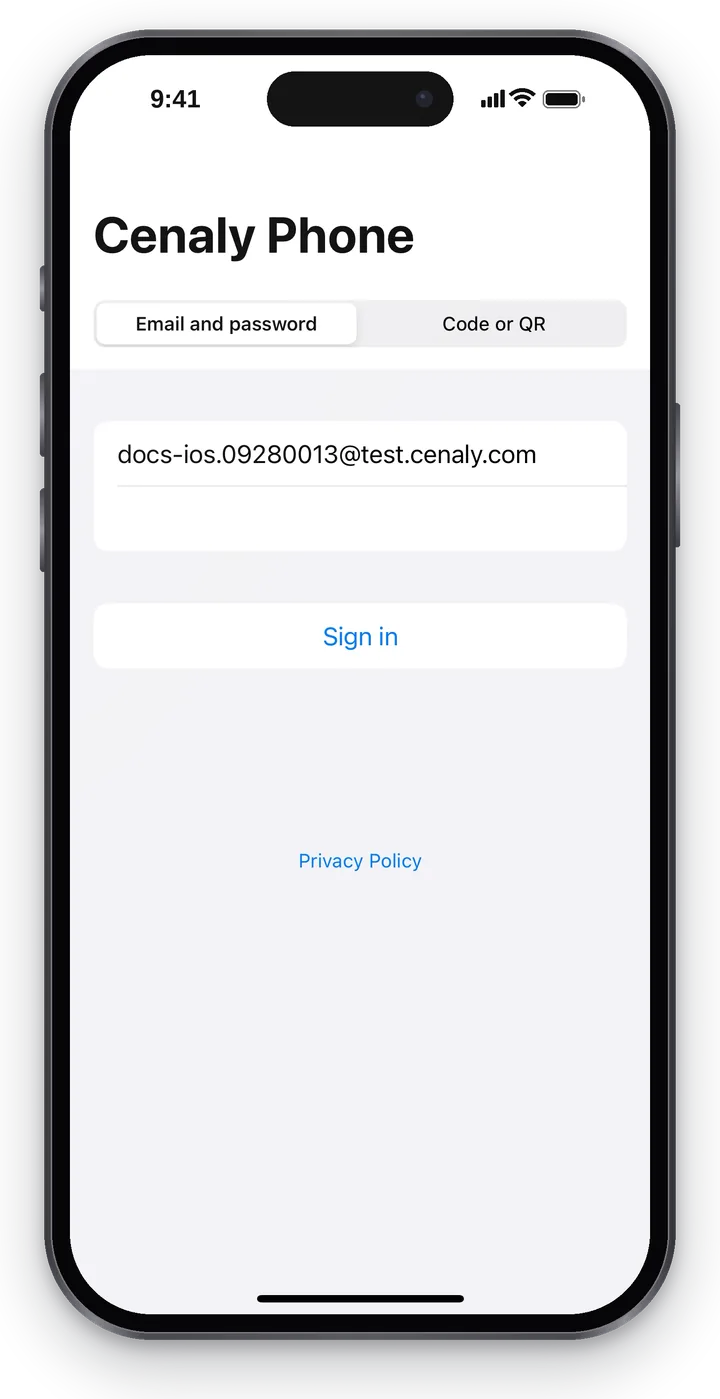 Screenshot: Cenaly Phone for iPhone, signing in with email and password.
Code or QR — for a shared phone of the business or for an employee without their own login. Your manager gives out the code.
- Choose “Code or QR”.
- Tap “Allow camera” and point the camera at the QR code — or tap “Enter code manually”.
- If the code comes with a PIN, enter it and tap “Sign in”.
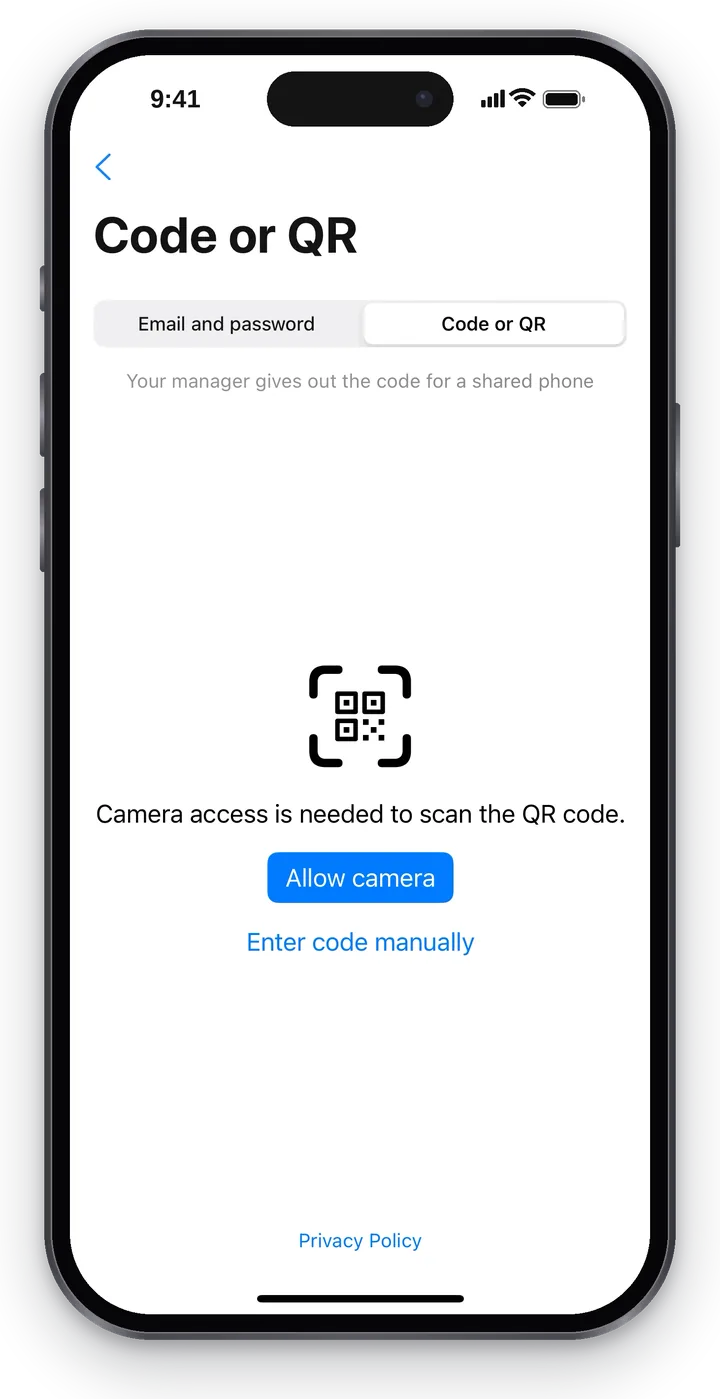 Screenshot: Cenaly Phone for iPhone, signing in with a QR code.
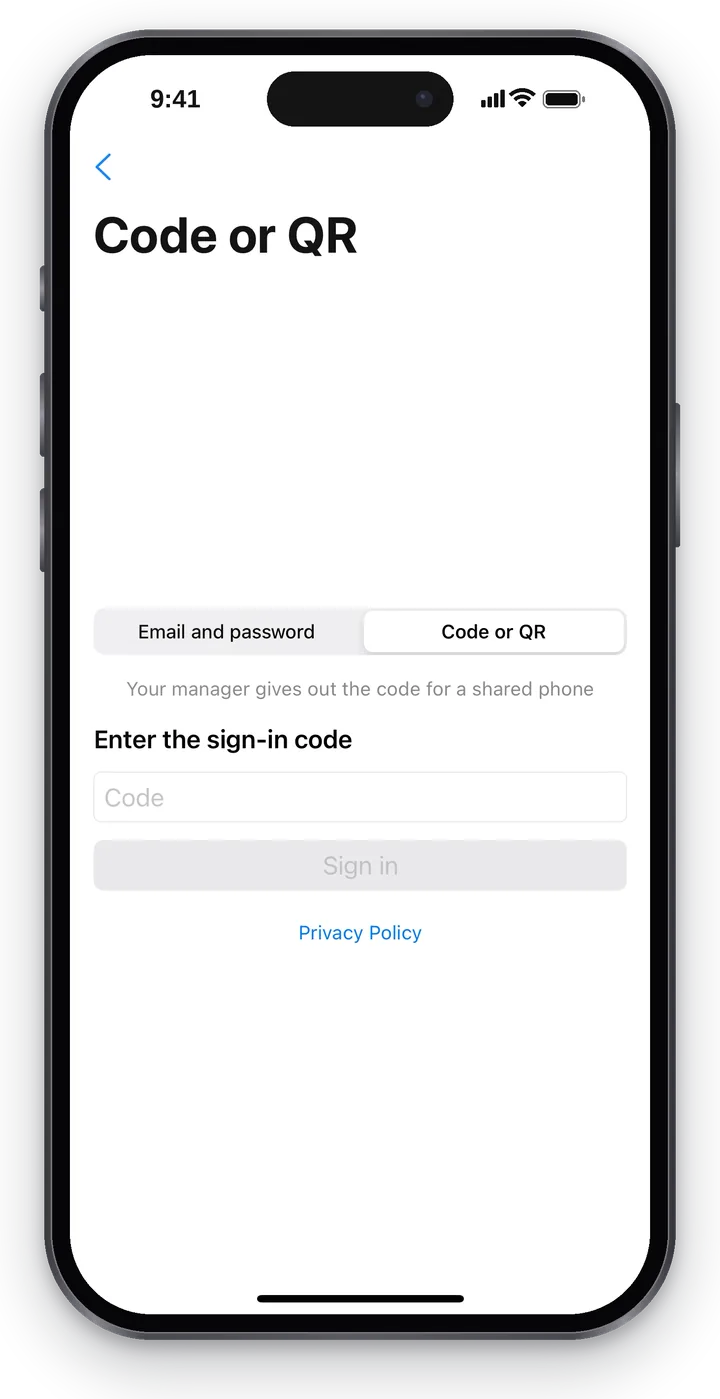 Screenshot: Cenaly Phone for iPhone, entering the code manually.
| Message | What it means and what to do |
|---|---|
| “Wrong email or password.” | Check the keyboard layout and Caps Lock; you can reset your password in the web account — see Account and sign-in |
| “Too many attempts. Wait a few minutes.” | Protection against password guessing — wait and try again |
| “This account needs a step that is only available on the web. Sign in on the web first.” | Sign in to the web account once (for example, to finish setting up the two-step code), then sign in to the app again |
| “Code not found.” / “The code has expired. Ask for a new one.” | The code was mistyped or is no longer valid — ask your manager for a new one |
| “Wrong PIN.” | The PIN for the code was entered incorrectly |
| “No connection to the server. Check the internet and try again.” | No internet, or the server is unreachable |
Step 2. Connect this phone#
After you sign in, the app finds your work number. If you work at several places, first pick the right workplace in the “Where do you take calls?” list; if there is only one, the app picks it for you.
The “Connect this phone” screen opens: the workplace, your extension and the note “Calls to … will also come here. Your other devices will keep working.”
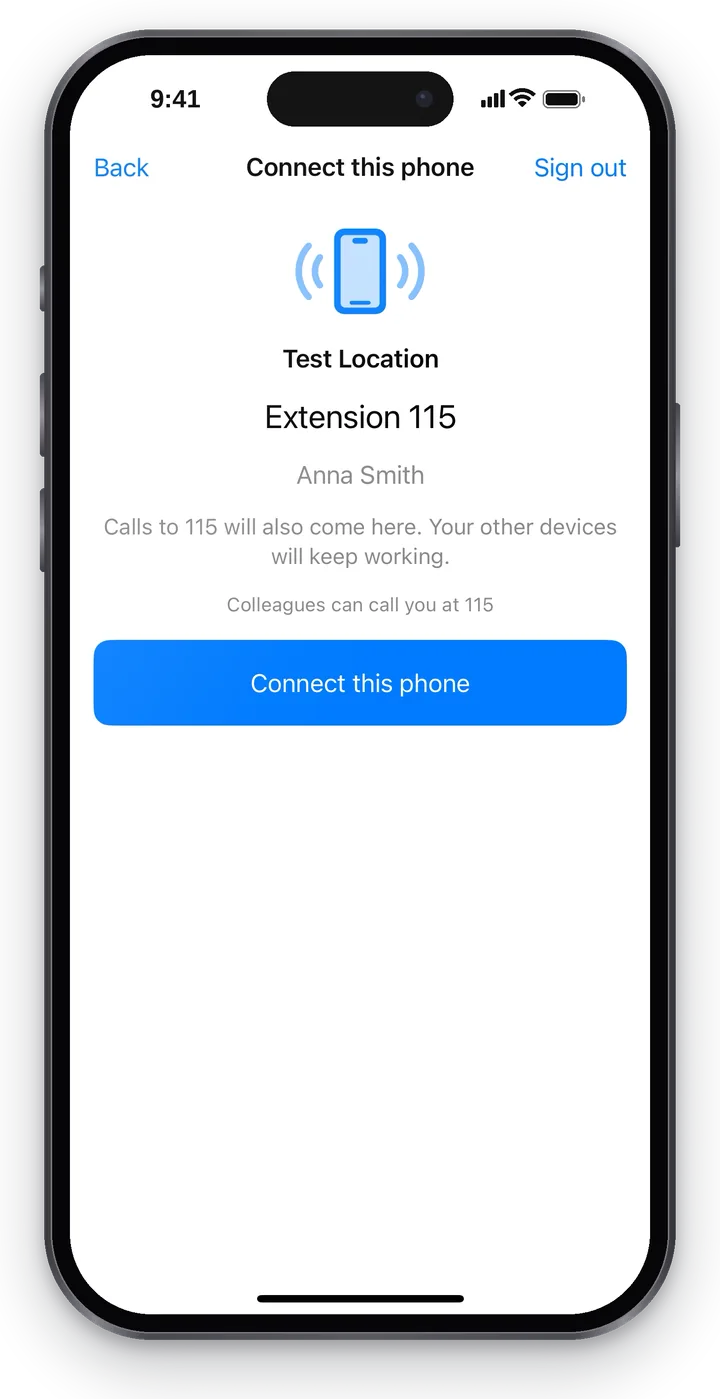 Screenshot: Cenaly Phone for iPhone, connecting to your work number.
Tap “Connect this phone”. The Home tab opens; a few seconds later a green “Ready for calls” line appears under the number — the iPhone is taking calls.
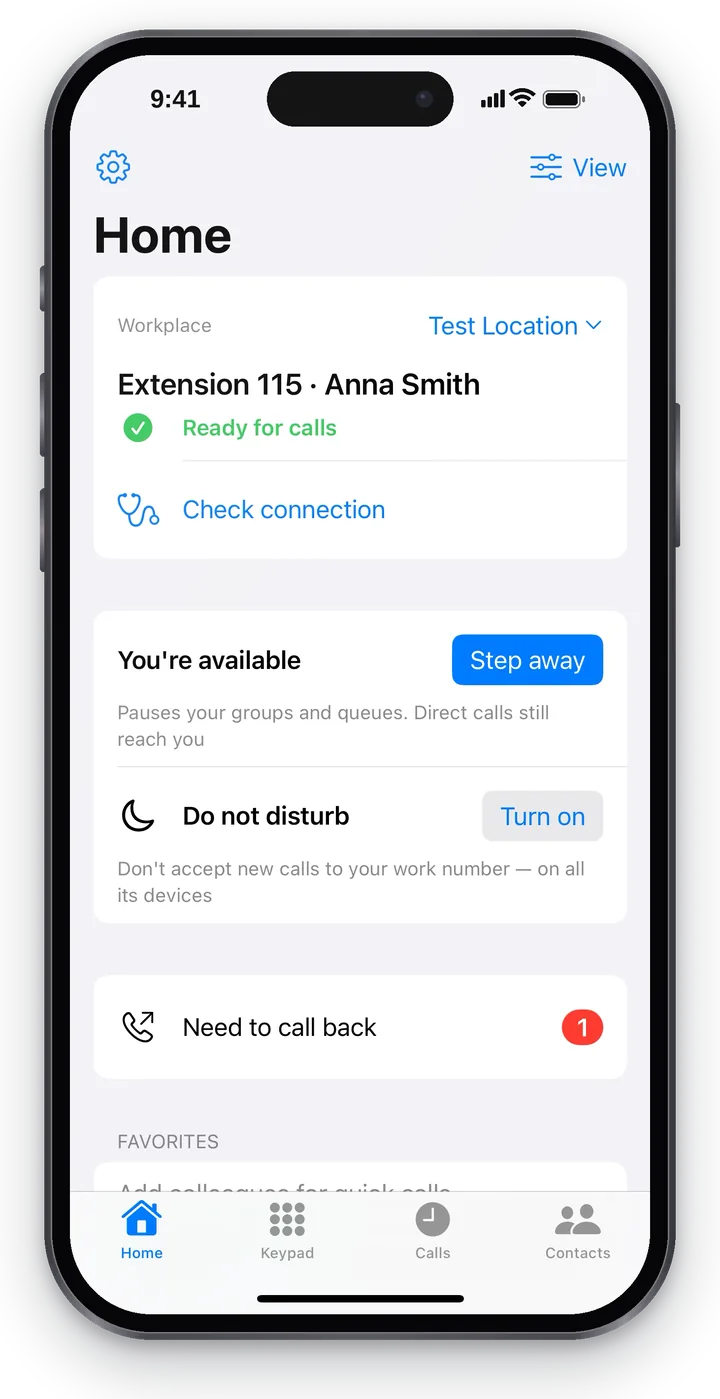 Screenshot: Cenaly Phone for iPhone, the Home tab after connecting.
Instead of the connect button you may see a message:
| Message | What it means | What to do |
|---|---|---|
| “No work number has been assigned yet. Contact your manager” | You have no number at this workplace | Ask your manager to assign you a number on the Staff & groups tab |
| “A manager connects phones at this workplace. Ask them for a sign-in QR code.” | Your manager has not allowed staff to connect phones themselves | Ask them to turn the permission on or to give you a sign-in code |
| “You have reached the device limit. Disconnect a phone you no longer use.” | You have connected as many phones as allowed | Tap “Disconnect” next to a phone you no longer need — the iPhone then connects on its own |
| “You haven't been assigned a workplace yet” | You have not been added to any workplace | Contact your manager |
Step 3. Check the connection#
The green “Ready for calls” line means the iPhone is connected. Sound is checked separately — do it once after connecting:
- On Home, tap “Check connection” — “Help with calls” opens.
- Tap “Check sound”. The app makes a short test call: speak and you will hear yourself with a slight delay. The call ends on its own after 12 seconds.
- Answer the question “Did you hear yourself?”. “Yes” means sound goes both ways.
- Tap “Check incoming calls” — the phone system itself calls this iPhone. This checks that incoming calls reach you.
Details are in Help with calls and troubleshooting.
On your first call the app asks for access to the microphone — tap “Allow”, otherwise the other person won't hear you.
What is where in the app#
There are four tabs at the bottom:
| Tab | What's there | Article |
|---|---|---|
| Home | Readiness for calls, workplace, “Step away”, “Do not disturb”, favorite colleagues, “Need to call back” | Home |
| Keypad | Dialing with digits or by name, suggestions from contacts | Dialing, calls and call log |
| Calls | Your call log, call-backs, recordings and call details | Dialing, calls and call log |
| Contacts | Colleagues with live status (“On a call”, “Available”…), your contacts, iPhone contacts, rooms | Colleagues and contacts |
At the top right of every tab is the “View” button: choose how much to show (“Simple”, “Standard”, “Everything”). On Home, at the top left, is the “Settings” gear: my work number, my groups, help with calls, about the app, sign out. Details — View and settings.
During a call the app shows the call screen; if you minimize it, a “Back to call” bar stays at the top of every screen. How to hand a call to a colleague — see Transferring a call.
Disconnecting and signing out#
- Disconnect this phone — Settings → “My work number” → “Disconnect this phone”. Calls stop coming to the iPhone, your other devices keep working; you stay in the app and can connect again.
- Sign out — Settings → “Sign out”. The app asks “Sign out and disconnect this phone?”: signing out disconnects the iPhone from your work number.
Neither is available during a call — the app asks you to end the call first.
Limitations#
- iPhone only: there is no iPad version.
- At any moment the iPhone takes calls for one workplace. If you have several, switch on Home — see Home.
- There are no manual settings (server, login, codecs) in the app — everything comes from the server. If you need manual setup, use a third-party softphone, see Softphones.
Troubleshooting#
| Symptom | What to check |
|---|---|
| “You haven't been assigned a workplace yet” after signing in | You signed in with the wrong account, or you have not been added to a workplace — ask your manager |
| No “Connect this phone” button | Read the message on the screen — see the table in step 2 |
| A red line instead of “Ready for calls” | Check the internet and pull Home down to refresh. Details — Help with calls and troubleshooting |
| The other person can't hear you | Allow the microphone: iPhone Settings → Privacy & Security → Microphone → Cenaly Phone |
FAQ#
Will my desk phone stop ringing?#
No. Each device is connected to your work number separately, so a call rings on all your devices at once. Whoever answers first takes the call.
Do I need to enter a server address and password?#
No. The app gets everything it needs from the server when you tap “Connect this phone” and keeps it in the iPhone's secure storage.
Do calls go through my mobile carrier?#
No, they go over the internet and the business's phone system; customers see the business's number, not your personal one. The exception is emergency numbers (112, 911 and others): the app hands them to the iPhone's regular Phone app, and the call goes over the cellular network.