Cenaly Phone: colleagues and contacts
The Contacts tab lists everyone you can call from Cenaly Phone: your colleagues at the workplace with live status, your own contacts and your iPhone contacts.
What's on the tab#
At the top are the “Name or number” search and the “Colleagues / Mine / Phone” switch. Pull the list down to refresh it.
All lists follow one rule: tapping a name opens the card, the green handset on the right calls right away. If a contact has several numbers, the app asks “Which number to call?”.
Colleagues and their statuses#
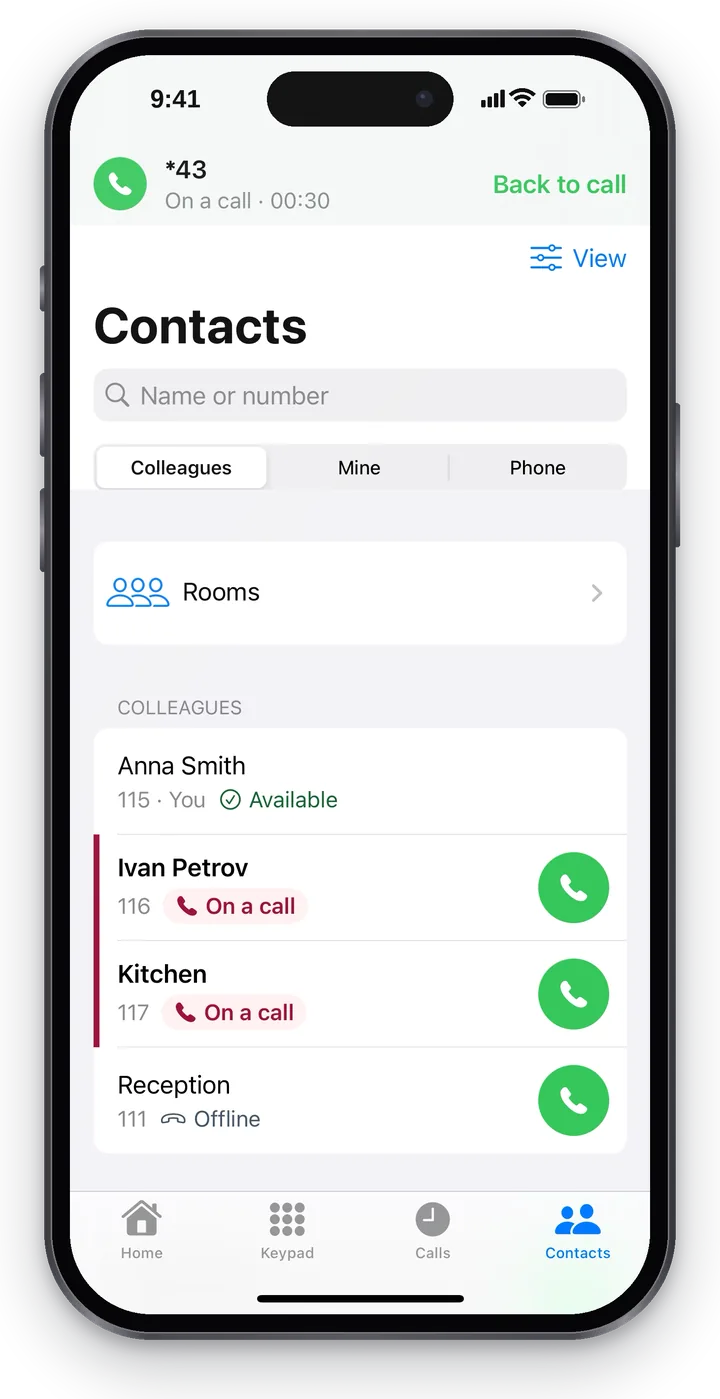 Screenshot: Cenaly Phone for iPhone, colleagues with their statuses.
First come “Favorites”, then “Colleagues” (you first, marked “You”), then “Service numbers” — call groups, rooms, assistants. The order doesn't jump around when statuses change.
Each colleague has an extension and a status. The status is an icon and a word, not just a colour:
| Status | What it means |
|---|---|
| 📞 On a call | The colleague is talking right now. The row is marked with a bar on the left — you can see at a glance who is busy |
| 🔔 Ringing | The colleague's phone is ringing right now |
| ↗ Dialing | The colleague is making a call |
| ✅ Available | Connected and not on a call |
| ⏸ Stepped away | Tapped “Step away”: group calls don't go to them, direct calls do |
| 🌙 Do not disturb | New calls to their number are not accepted |
| Offline | None of the colleague's devices is connected right now |
| ❔ Status unknown | The status information is out of date |
If statuses haven't been updated for a while, you'll see “Call statuses are unavailable right now” above the list and the time of the last confirmation — don't rely on the statuses at that moment. You can still make calls.
In the “Standard” and “Everything” views (the “View” button) there is an “All / People / Service numbers” filter above the list, and in the “Everything” view also “On a call”.
A colleague's card and favorites#
Tap a colleague's name to open their card: the name, “Extension …”, the status, the “Call” button and “Add to favorites” / “Remove from favorites”.
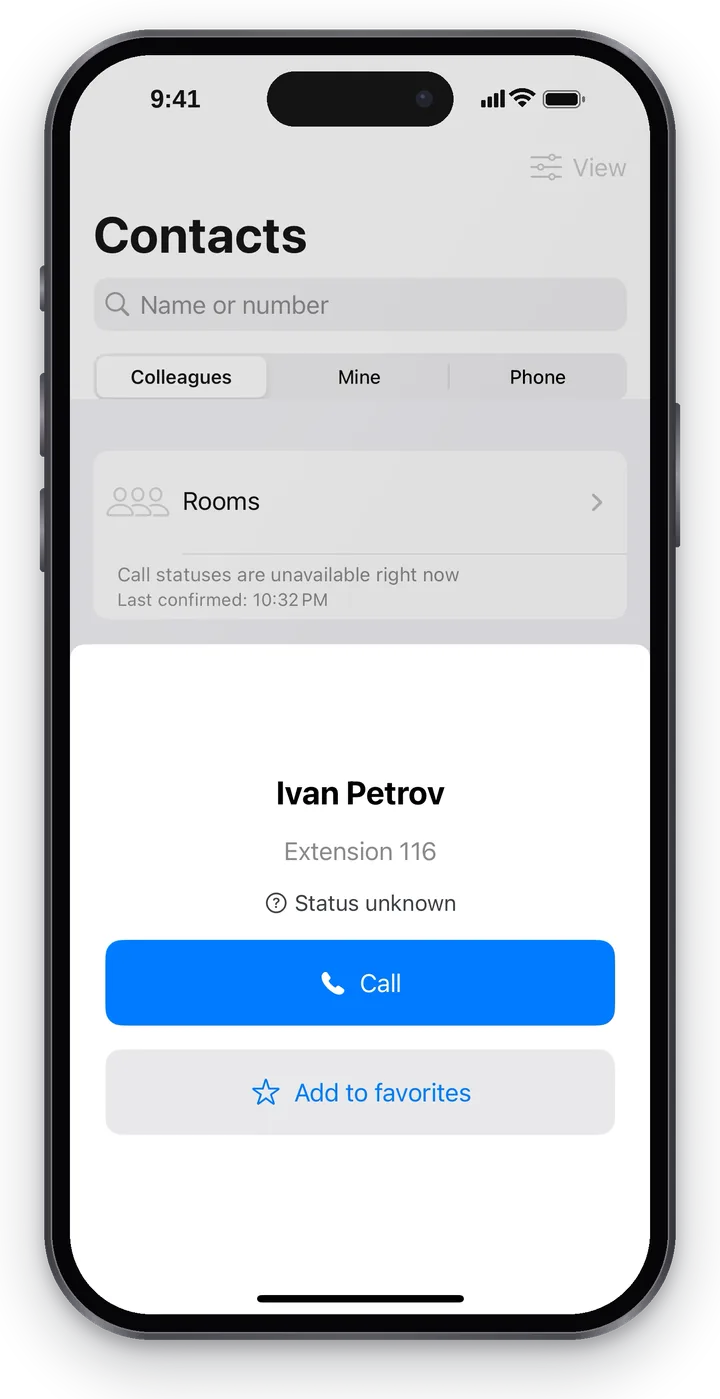 Screenshot: Cenaly Phone for iPhone, a colleague's card.
Favorite colleagues are shown first in Contacts and on Home. To change the list and the order — Home → “Choose colleagues”.
“Mine” contacts#
“Mine” are your work contacts (a supplier, a courier, a regular customer) that are kept only on this phone: they don't go to the phone system or to other staff.
- Tap “Add contact”.
- Enter the “Name”, the “Main number” and, if needed, an “Additional number”.
- Tap “Save”.
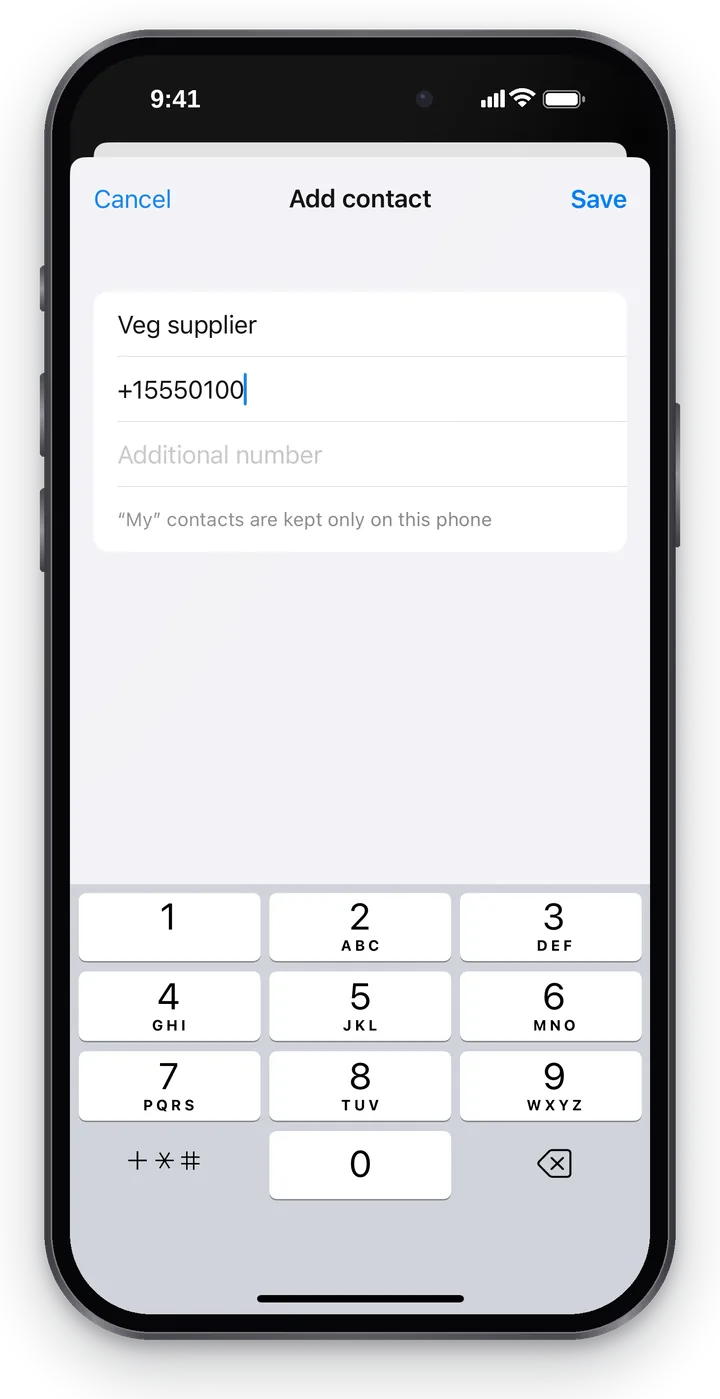 Screenshot: Cenaly Phone for iPhone, a new “Mine” contact.
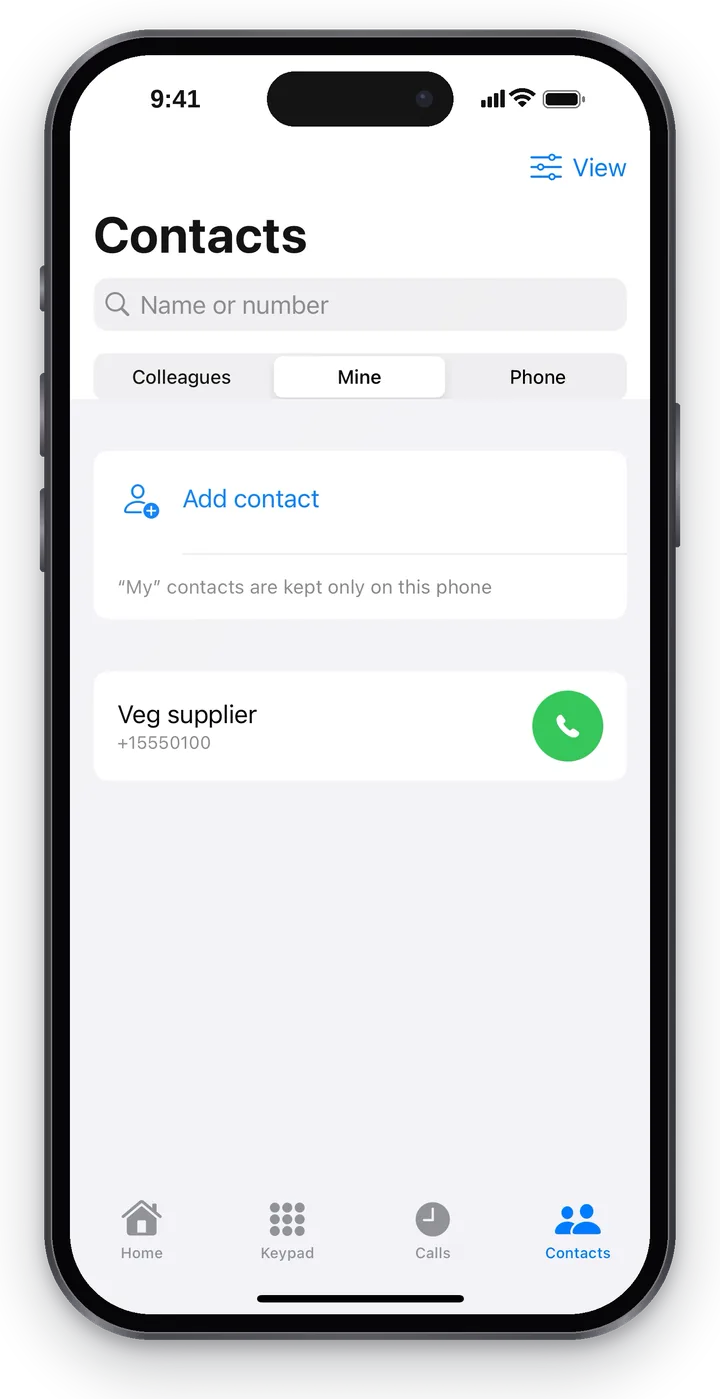 Screenshot: Cenaly Phone for iPhone, “Mine” contacts.
The contact's card has the numbers with a “Copy number” button, “Edit” and “Delete”. You can also delete by swiping the row. After a deletion, a “Contact deleted” banner with an “Undo” button is shown for a few seconds — the contact comes back.
Names from “Mine” are shown in the call log, in dialing suggestions and on incoming calls.
iPhone contacts#
“Phone” is the iPhone's address book. The app asks first: “Show the contacts from this phone's address book? They are read only on this phone and are not sent anywhere.” — and requests iOS access only after you tap “Show phone contacts”.
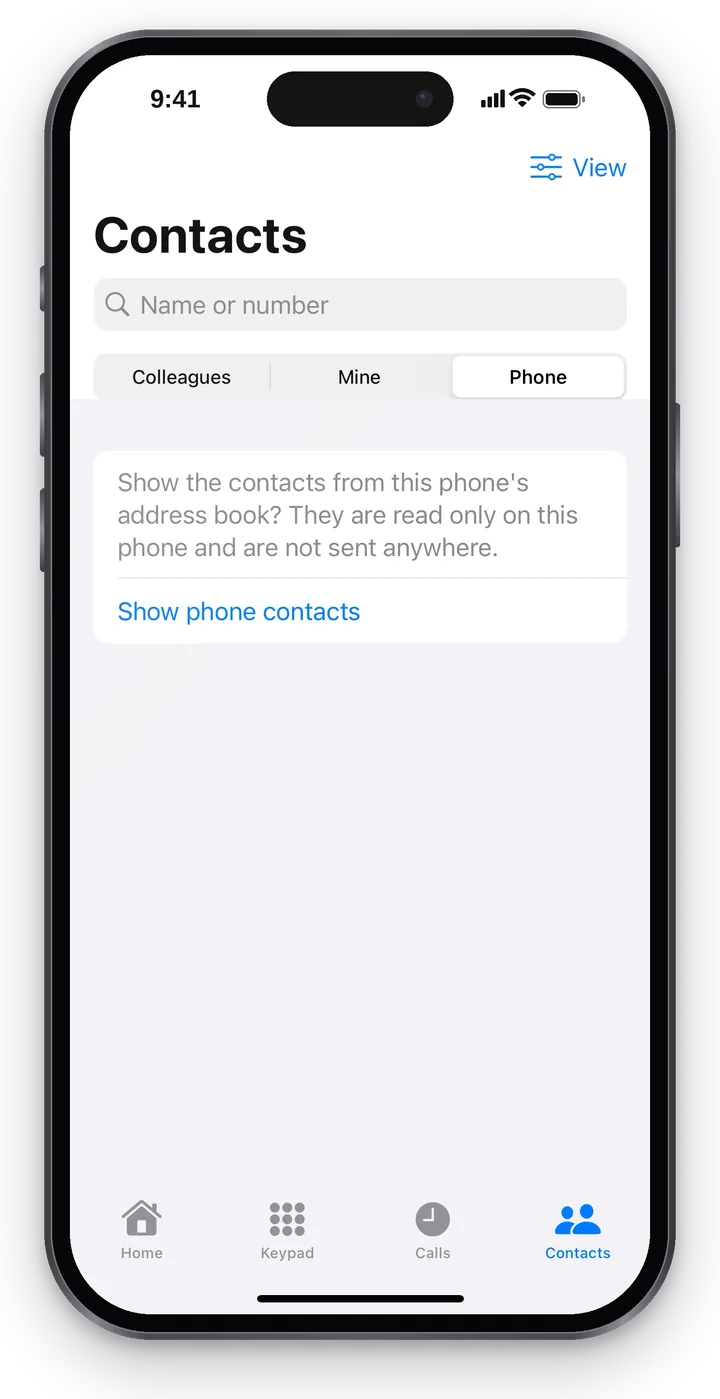 Screenshot: Cenaly Phone for iPhone, iPhone contacts — only with your consent.
If you refused, you'll see “Access to contacts is off. You can turn it on in the system settings.”: iPhone Settings → Privacy & Security → Contacts → Cenaly Phone.
Rooms#
“Rooms” (at the top of the colleagues list) are the workplace's permanent conference rooms. Tap the green button next to a room — you join it with a call.
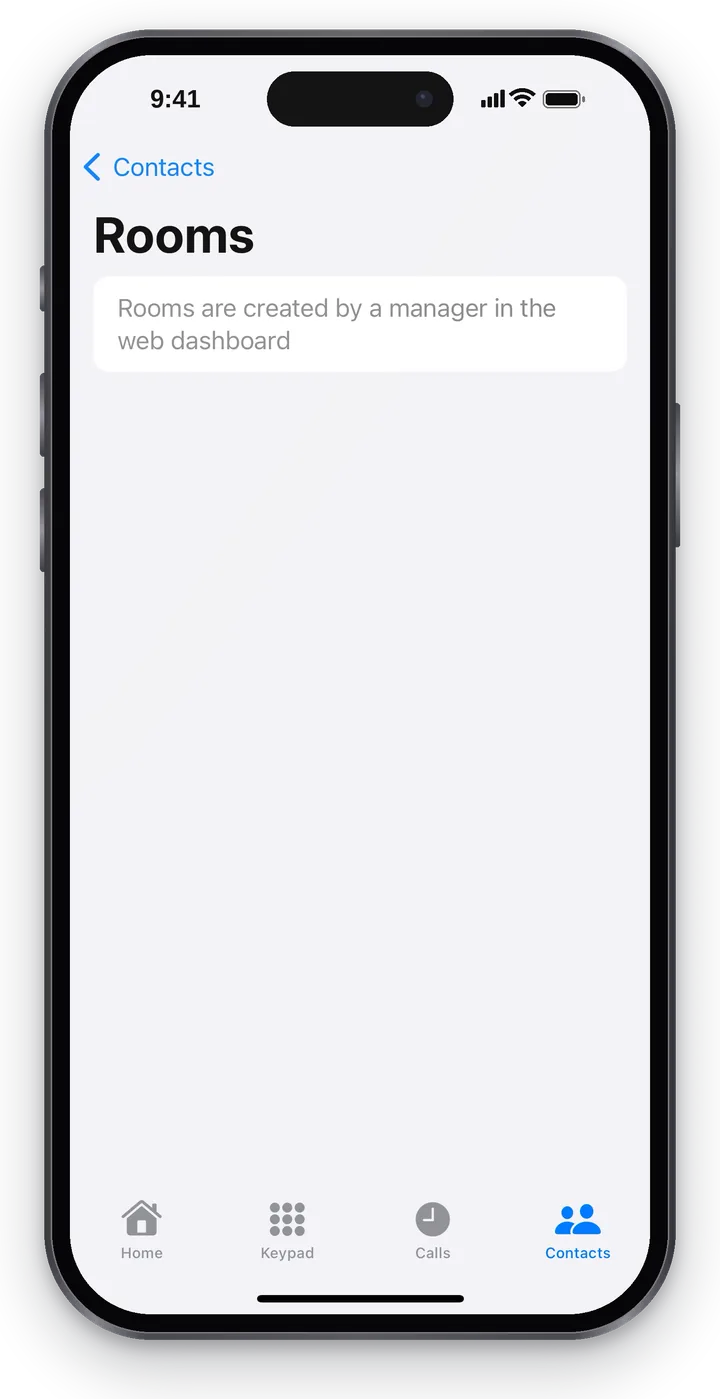 Screenshot: Cenaly Phone for iPhone, rooms.
- “This room needs a code” — once connected, tap “Send code” on the call screen: the app dials the code for you.
- “Room is turned off” — you can't join, the button is grey.
- Rooms are created and set up by your manager in the web account; in the app you can only find and join them.
The caller card and tips#
When a known customer calls, the call screen and the call details show the caller card: the name, how many times they have called, how many call-backs are pending, bookings and orders. The “Open in the web account” link opens the customer's card. If you have no access to the customer base, you'll see “Details are hidden: no access to CRM.”
If the prompter is on at your workplace and you have allowed AI hints (see AI hints: what is shared), tips from the knowledge base appear during a call. Mark a tip “Helpful” or “Not helpful” — the app answers “Thanks, noted”. If the call came from a call-center queue, “More” has “Take on” and “Give back”. How to set up the prompter — Agent assist.
Troubleshooting#
| Symptom | What to do |
|---|---|
| “Colleagues will appear after you connect a workplace” | Connect the iPhone on Home |
| “No colleagues yet” | There are no other staff with work numbers at the workplace |
| “Call statuses are unavailable right now” | Pull the list down; if it keeps happening, check the internet |
| The “Phone” tab shows no list | Allow access to contacts (see above) |
FAQ#
Can colleagues see my “Mine” contacts?#
No. They are kept only on this iPhone.
Do iPhone contacts get sent to the server?#
No. iPhone contacts are read only on the phone and are not sent anywhere.