Cenaly Phone: help with calls and troubleshooting
What to do if calls don't come in, you can't hear the other person, or the app shows something unclear. Almost everything starts on the “Help with calls” screen.
Help with calls#
You can open it in three ways:
- Home → “Check connection”;
- Settings → “Help with calls”;
- Keypad → “Check connection” under the “You can't call right now” message.
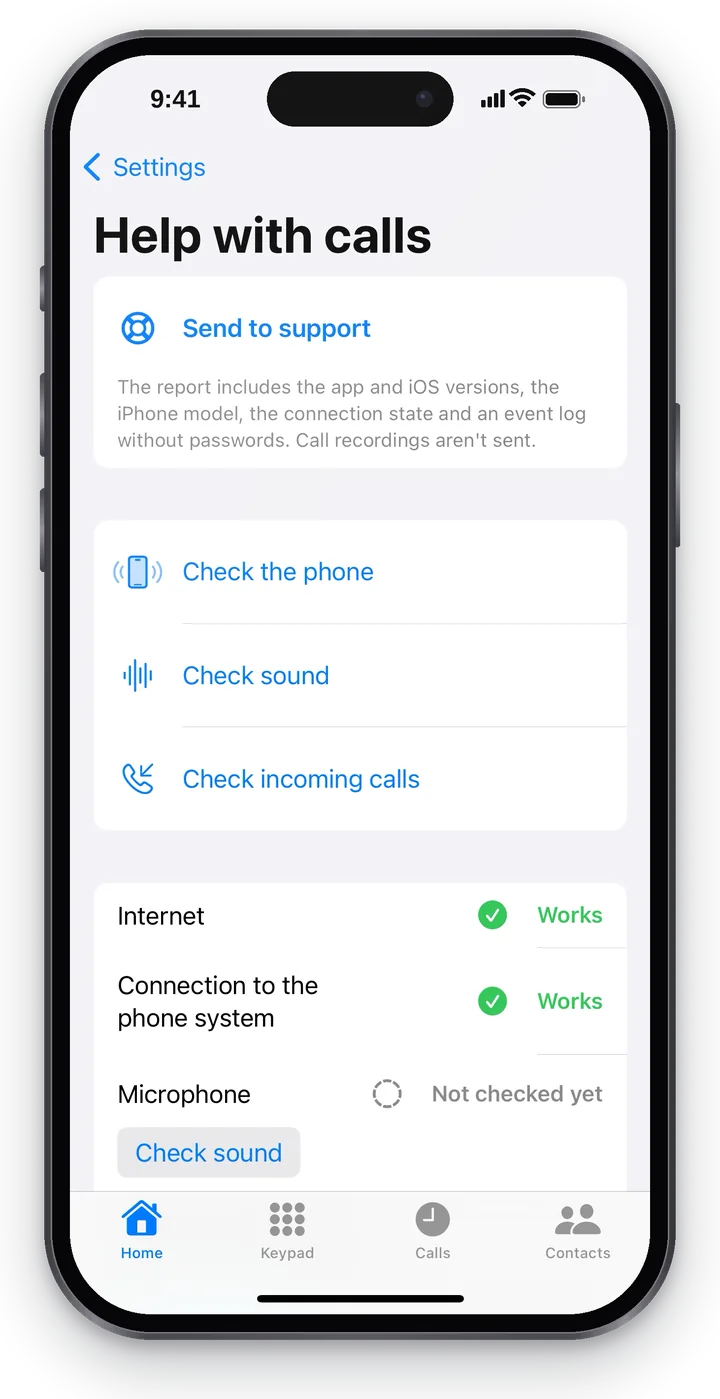 Screenshot: Cenaly Phone for iPhone, Help with calls.
Send to support#
The first block on the screen is “Send to support”. Tap it right after a problem: the report includes the app and iOS versions, the iPhone model, the connection state and an event log without passwords. Call recordings aren't sent.
- Sent — “Sent at 10:42”. Tell support the time and what happened (see How to get help).
- “Not sent” — tap “Retry” or “Save the report on the phone”: the report is saved as a file that you can forward by email or in a messenger.
Checks#
| Button | What it checks |
|---|---|
| “Check the phone” | Reconnects to the phone system and refreshes the status |
| “Check sound” | A short test call: speak and you'll hear yourself. After 12 seconds the call ends on its own, and the app asks “Did you hear yourself?” |
| “Check incoming calls” | The phone system itself calls this iPhone. “A test call will come to this phone shortly”. Lock the screen — this checks that calls come in the background |
“Check sound” and “Check incoming calls” are not available during a call.
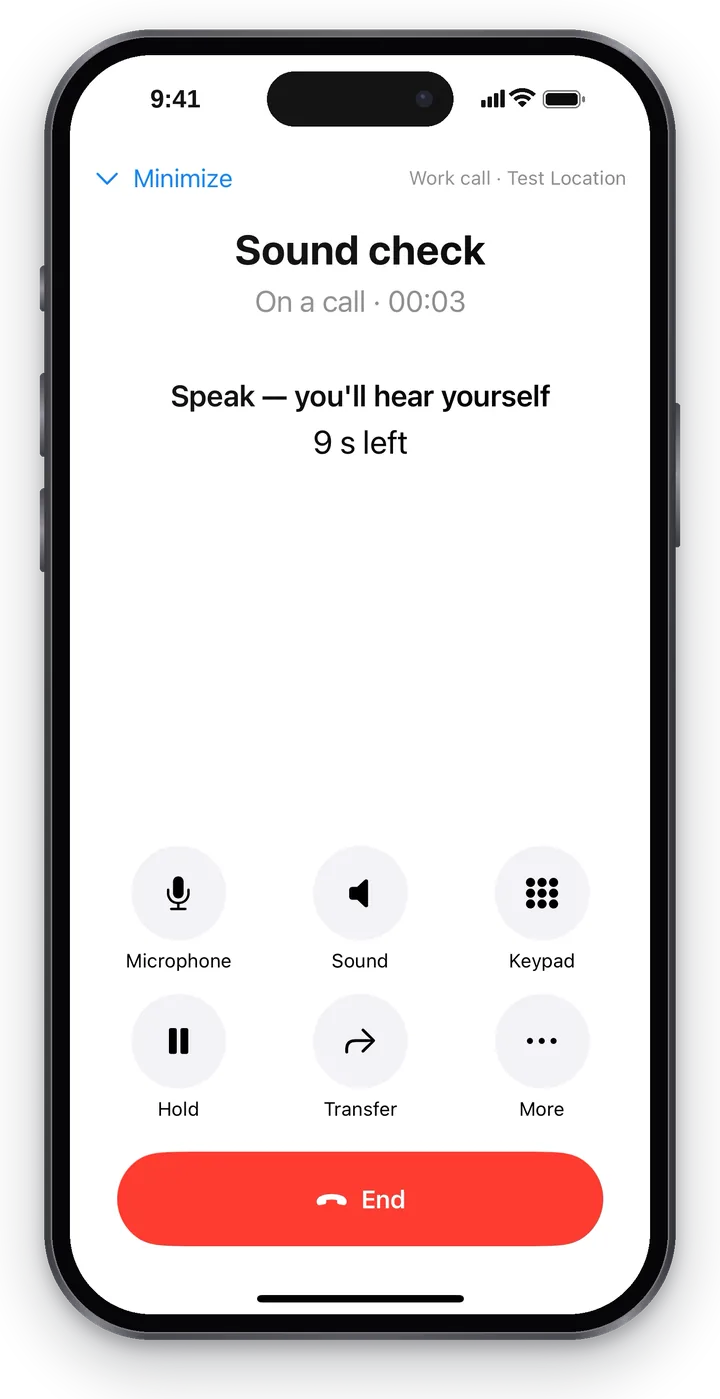 Screenshot: Cenaly Phone for iPhone, the sound check.
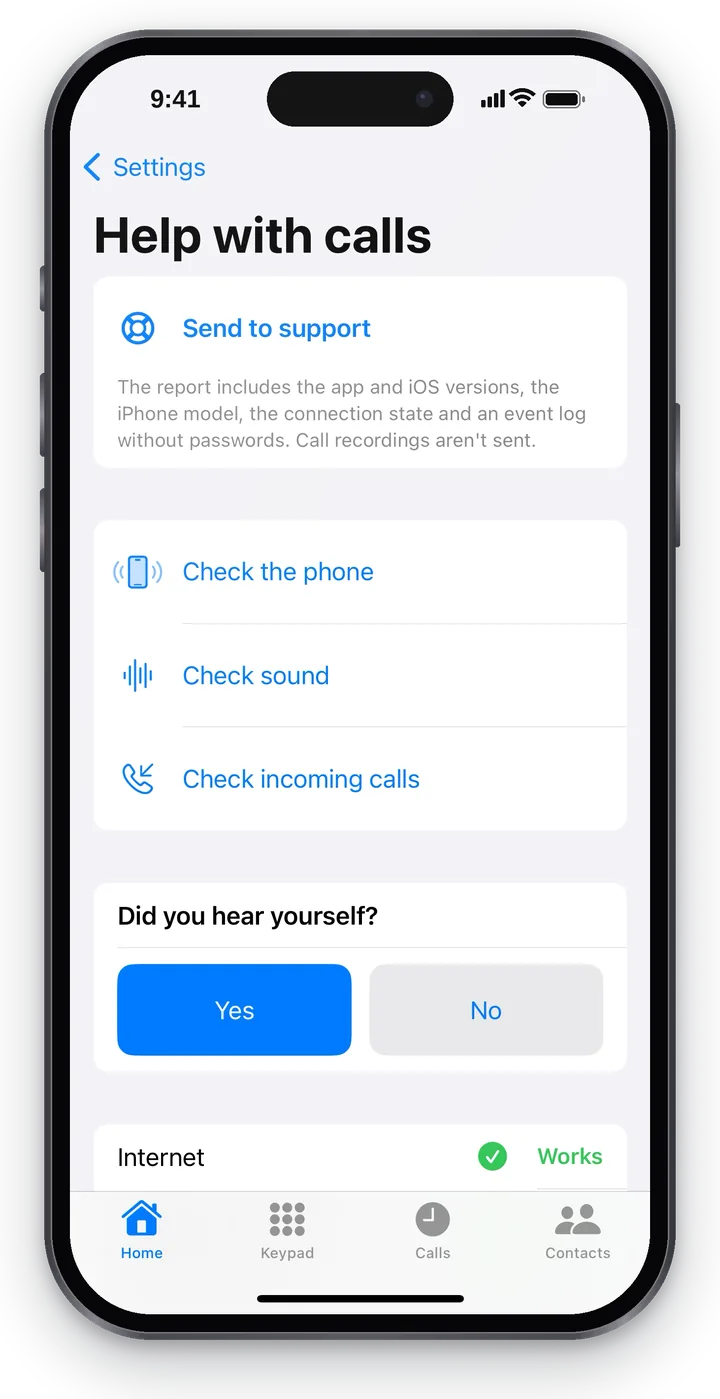 Screenshot: Cenaly Phone for iPhone, “Did you hear yourself?”.
Check results#
Under the buttons are the results for five items: “Internet”, “Connection to the phone system”, “Microphone”, “Sound and headset”, “Incoming calls in the background”.
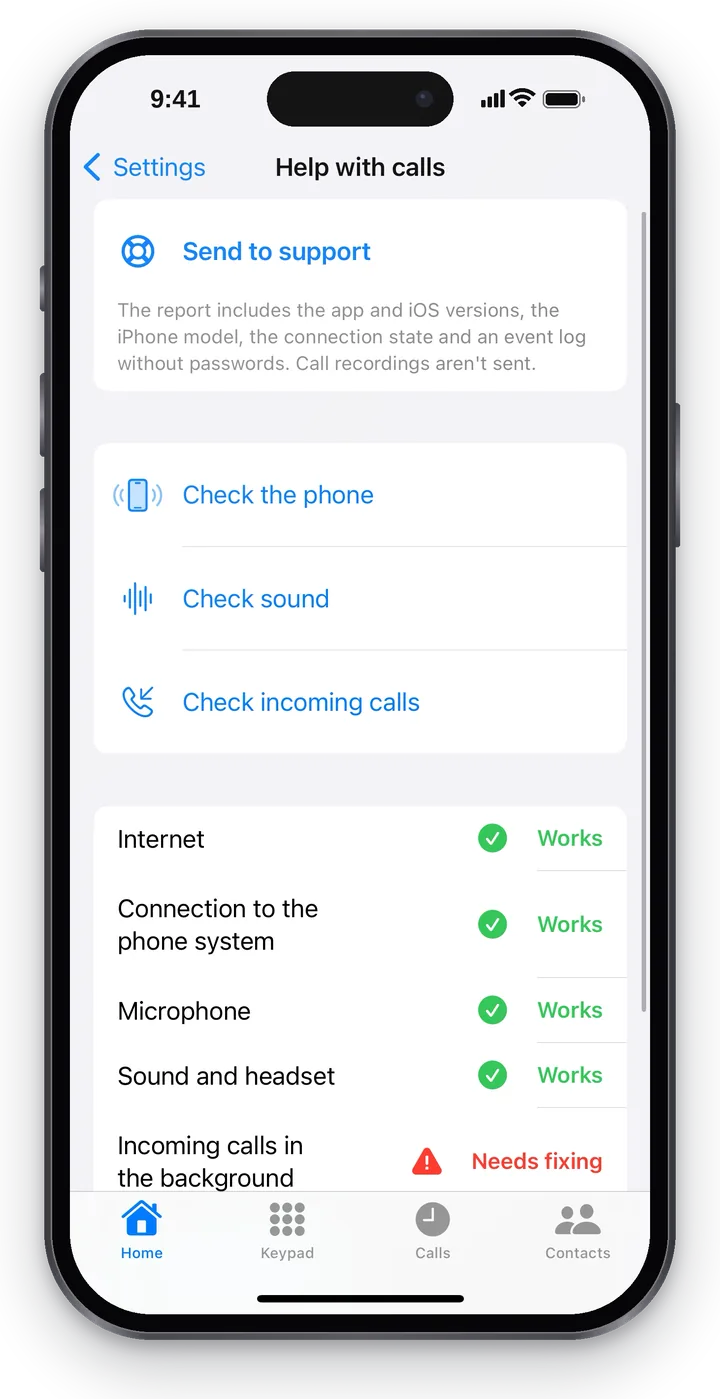 Screenshot: Cenaly Phone for iPhone, check results.
| Result | What it means |
|---|---|
| ✅ Works | Checked and working. The app says “Works” only about what it has actually checked: for example, “Incoming calls in the background” — only if a test call arrived while the app was closed |
| Not checked yet | The check hasn't been run — there is a button next to it that runs it |
| 🟠 Couldn't check | The check gave no answer — try again |
| 🔴 Needs fixing | There is a problem; next to it is a button that helps fix it (“Open Settings”, “Connect this phone”, “Send to support”…) |
Calls when the app is closed#
iOS doesn't let apps keep a connection open in the background. For a call to reach a closed Cenaly Phone, your workplace's phone system has to “wake” the iPhone with a special Apple notification. You can see the state in Settings → “Sound and notifications” → “Incoming calls in the background”:
| Text | What it means |
|---|---|
| “Calls reach this iPhone even when the app is closed.” | Everything is set up — Home shows a green “Ready for calls” |
| “Setting up calls for when the app is closed…” | The app is registering for such calls — wait |
| “Your workplace's telephony can't wake this iPhone yet. Until it's updated, calls arrive only while Cenaly Phone is open.” | The phone system hasn't been updated yet; Home shows an orange “Connected”. Keep the app open, and use a desk phone for reliable call pickup |
How calls are protected#
| What | How it's protected |
|---|---|
| Connection password | Issued by the server when you connect and kept in the iPhone's secure storage. You don't see it in the app and never type it. Each device has its own — disconnecting one doesn't affect the others |
| Sign-in | With your account (and a two-step code, if it's on) or with a sign-in code from your manager |
| Connection to the phone system | The app checks that it is talking to the business's own phone system. If that can't be confirmed, it doesn't connect at all and never falls back to an unprotected connection |
| Voice | Always encrypted |
| Disconnecting | Your manager can disconnect any device in Telephony; you can disconnect this iPhone (“Disconnect this phone”) or your other device (“My work number” → “Disconnect”) |
“Couldn't confirm the connection is secure”#
A red line on Home. The iPhone reached the phone system but couldn't make sure the connection hasn't been tampered with. This happens when:
- the phone system has just changed its certificate — the app re-reads the data from the server by itself and connects;
- the network intercepts connections — a corporate filter or public Wi-Fi with “HTTPS inspection”. In that case the app is right to refuse to connect: otherwise an outsider could listen to your calls.
What to do: wait 10–15 minutes and pull Home down; switch from Wi-Fi to mobile data (or the other way round). If it works on another network, the problem is the network — tell its administrator. If it works nowhere — “Send to support” and tell your manager.
iOS permissions#
| Permission | Why | Where to turn it on if you refused |
|---|---|---|
| Microphone | So the other person can hear you. The app asks on your first call: “So the other person can hear you, allow access to the microphone” | iPhone Settings → Privacy & Security → Microphone → Cenaly Phone |
| Camera | Only for signing in with a QR code | Privacy & Security → Camera |
| Contacts | Only for Contacts → “Phone”. Contacts never leave the iPhone | Privacy & Security → Contacts |
| Notifications | Incoming calls and reminders | Settings → “Sound and notifications” → “Notification settings” |
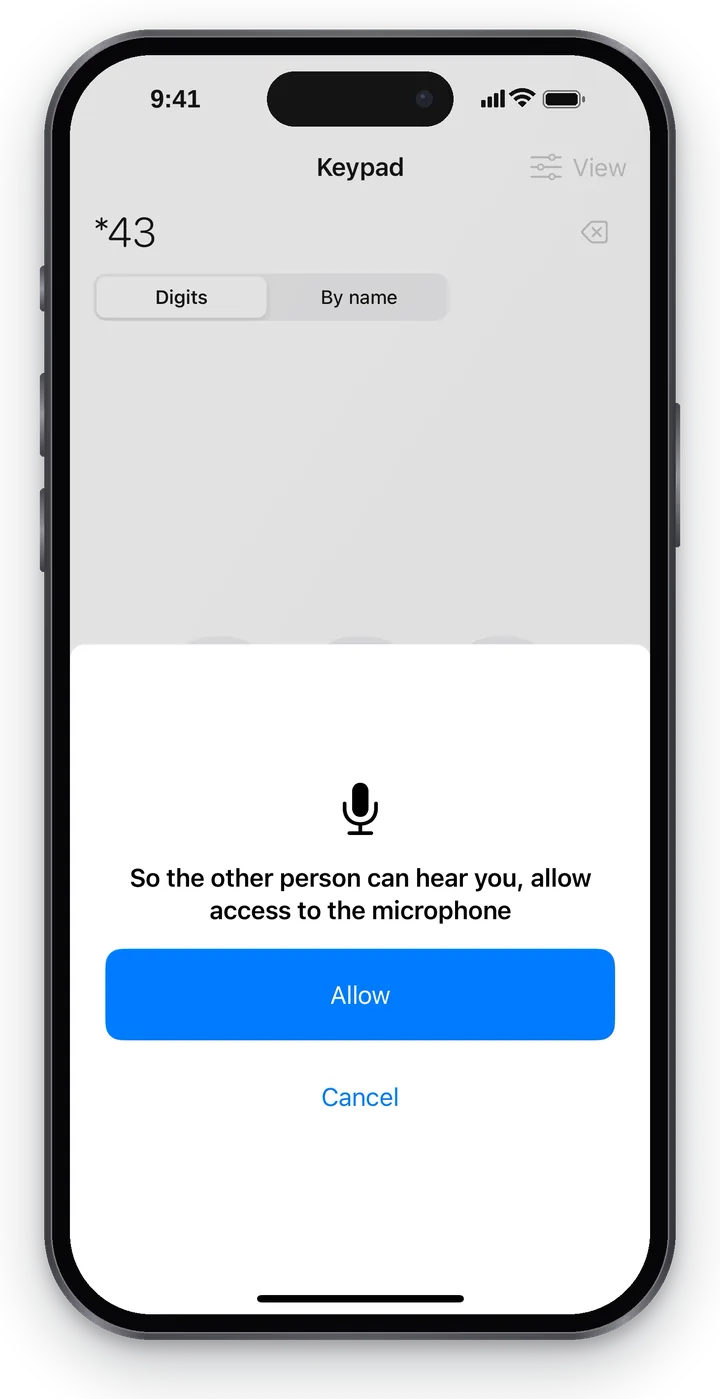 Screenshot: Cenaly Phone for iPhone, microphone access.
If microphone access is denied, before a call the app warns “No microphone access — the other person won't hear you” and offers “Open Settings” or to “Call” anyway.
The iPhone does not ring on incoming calls#
- Does Home show a green “Ready for calls”? If it shows an orange “Connected”, calls arrive only while the app is open (see above).
- Are “Do not disturb” or “Step away” on in the app — or the iPhone's own Do Not Disturb / Focus?
- “My work number” → “When this phone rings”: maybe these are not your hours right now.
- “Help with calls” → “Check incoming calls”. If the test call arrives, the iPhone is taking calls, and the problem is where the phone system sends calls: check “My groups” and “How the call went” in the call log.
No sound or one-way sound#
- “Help with calls” → “Check sound”.
- Check the “Microphone” button on the call screen and the microphone permission.
- Switch between Wi-Fi and mobile data: most often sound gets lost on a restricted network.
- Still not working — “Send to support” right after the failed call.
General causes are in No audio, one-way audio, echo, “robot” voice.
Other app messages#
| Message | What it means |
|---|---|
| “No connection to the phone system” | The app couldn't reach the phone system — check the internet, then “Check the phone” |
| “Access turned off by your manager” | Your manager turned off your number or this device |
| “You can't call right now. …” | The call won't start — the reason is at the end of the line; “Check connection” |
| “The call dropped before it connected.” | The incoming call was cut off before it connected — call back from the log |
| “Waiting for connection: N change(s) will be sent automatically” | Changes made without internet will be sent automatically |
| “Not accepted by the server: …” | The server rejected a pending change — tap “OK” and try again |
| “End the call first” | The action isn't available during a call |
FAQ#
Can support see my password?#
No. The report is sent without passwords and without call recordings.
Can I use the app on public Wi-Fi?#
Yes. The voice is always encrypted, and if the network tampers with the connection, the app refuses to connect — that's the protection.
What should I do if I lose my iPhone?#
Ask your manager to disconnect this device in Telephony (or disconnect it yourself from another phone: “My work number” → the device → “Disconnect”) and change your account password.